
How to Diagnose a Laptop That Won’t Turn On
Quick Answer
Diagnosing a laptop that won’t turn on starts with looking at the signs. The problem could involve the power source, battery, display, software, or another internal component. A few practical checks can help narrow down the cause before moving on to more advanced troubleshooting.
For many people, a laptop is part of the everyday routine. It might be used for work, school, managing personal tasks, or simply streaming a favorite show. When it suddenly won’t turn on, even a small problem can quickly become a frustrating interruption.
The good news is that a laptop that appears completely unresponsive isn’t necessarily beyond repair. Below, we’ll go through what to check first, what different symptoms may mean, and when it may be time to consider laptop repair in Albuquerque.

Common Reasons a Laptop Won’t Turn On
A laptop that won’t respond can be the result of either a hardware or software issue. Taking note of what happened before the problem started, as well as any signals that appear while troubleshooting, can provide useful clues and help get to the root of the problem.
Common causes include:
Dead or failing battery
Faulty charger or power adapter
Damaged charging port
Unresponsive power button
Screen or display problems
Loose or faulty RAM
Storage drive failure
Motherboard problems
Interrupted or unsuccessful system updates
Liquid or physical damage
How to Troubleshoot a Laptop That Won’t Turn On
There are a few things you can check at home before seeking professional help. Checking external parts such as the charger, battery, and laptop itself can help you rule out simple problems.
No Lights, Fans, or Other Signs of Power
If your laptop shows no signs of life, check the outlet, charger, cable, and charging indicator first. If those appear to be working, a power reset may clear a temporary power issue.
For laptops with a removable battery, disconnect the charger and battery, hold the power button for about 15 to 30 seconds, then reconnect everything and try again. For laptops with built-in batteries, check the manufacturer’s instructions because the reset process can vary by model.
Charger Connected but Battery Is Not Charging
Inspect the charger and charging port for visible damage, debris, or a loose connection. If you have access to a compatible charger with the correct specifications, testing it can help determine whether the charger, battery, charging port, or another part of the laptop is causing the problem.
Power Button Not Responding
A power button that feels loose, sticks, or only works occasionally may be damaged or have a faulty internal connection. If your laptop remains completely unresponsive with a working charger connected, the problem may involve another part of the power system.

What If Your Laptop Turns On but Won’t Start Normally?
Sometimes the laptop isn’t completely unresponsive. If your laptop receives power but cannot complete the startup process, the problem is likely different from a laptop showing no signs of power. Pay attention to error messages, indicator patterns, unusual sounds, and where the startup process stops.
Black Screen With Lights or Fans Running
If you see lights, hear the fan, or notice keyboard illumination, your laptop is receiving power even if the screen stays black. Connecting a compatible external monitor can help determine whether the built-in display is involved. Further testing may be needed to identify whether the problem is the screen, display connection, graphics hardware, or another component.
Beeping Sounds or Blinking Lights
Some laptops use beep codes or blinking indicator patterns to report hardware problems during startup. Write down the pattern and check the manufacturer’s documentation because the meaning varies by brand and model. These codes may point to problems involving RAM, graphics hardware, the motherboard, or another component.
Stuck on the Startup Screen
If your laptop reaches the manufacturer logo but goes no further, disconnect external drives, USB devices, docks, and memory cards before restarting. A connected device can sometimes interfere with the startup process, so removing peripherals is a simple way to rule out an external cause.
Problems After a System Update
If your laptop stopped starting normally after a Windows or system update, the update or a related driver may not have completed correctly. Built-in recovery options can help restore normal startup, but if you have important files that aren’t backed up, avoid jumping straight to a reset or operating system reinstall that could affect your data.
“No Boot Device” or Storage Errors
A “no boot device” message or repeated startup errors can point to a problem with the storage drive, its connection, or the system’s boot configuration. Unusual clicking from a mechanical hard drive can also indicate a failing drive.
When Should You Stop Troubleshooting at Home?
Basic checks can help you rule out simple problems, but some symptoms are better left to a professional. Stop troubleshooting if you notice liquid damage, a burning smell, severe overheating, a damaged charging port, or signs of internal damage. If you have important files that aren’t backed up, avoid resets, reinstallations, or repeated attempts to power on the laptop that could put your data at risk.
Getting an Expert Diagnosis at The Phone Fix Place
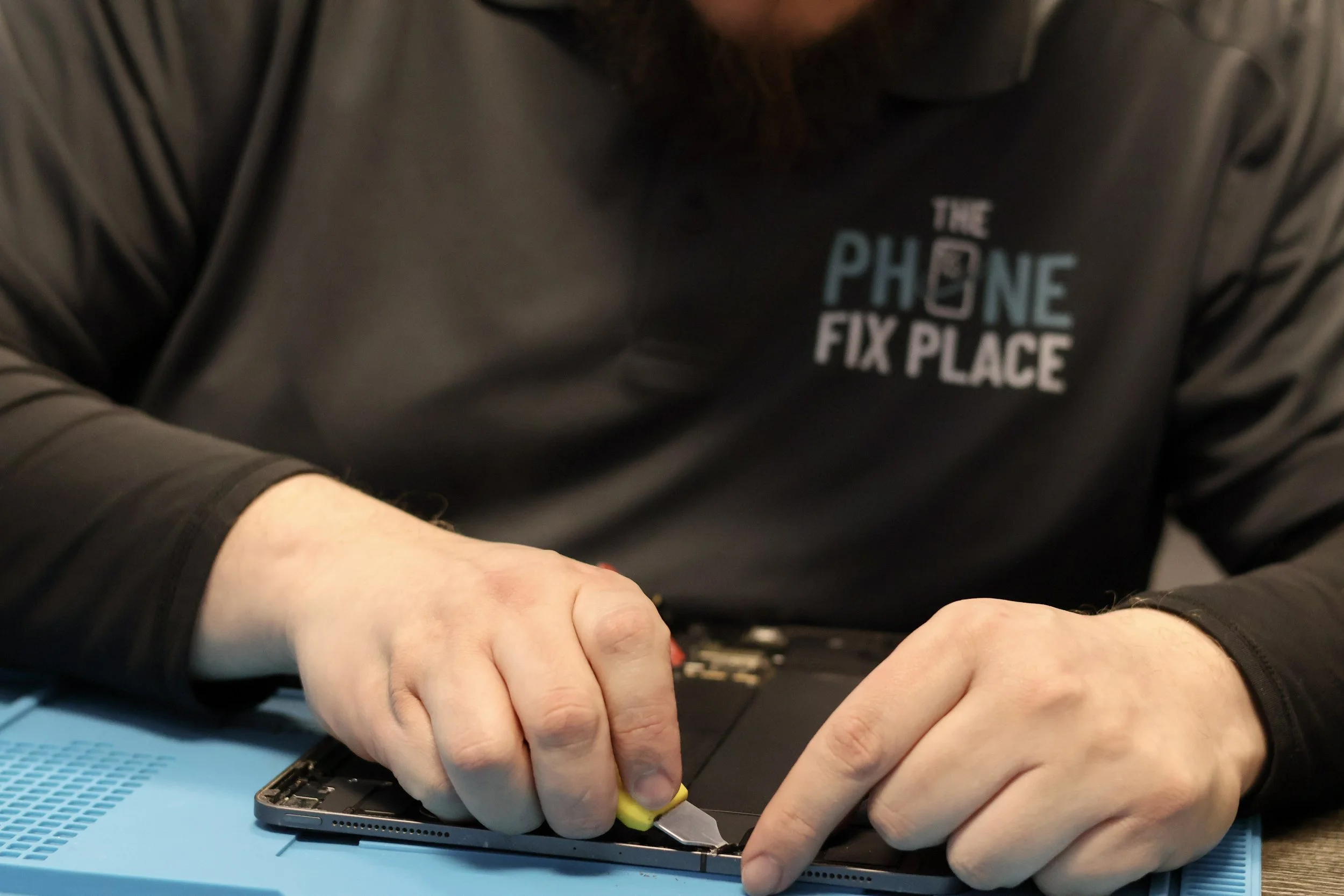
When basic troubleshooting doesn’t reveal the cause, a professional diagnosis can pinpoint the component behind the problem. At The Phone Fix Place, we offer laptop repair in Albuquerque for power, charging, display, startup, and other hardware issues. We also offer data recovery services when important files can no longer be accessed normally.
Frequently Asked Questions
Can a Laptop Battery Be Replaced at Home?
Some laptop batteries are designed for easy removal, while many newer models use internal batteries that require opening the case. Before buying a replacement, check your laptop’s specifications and make sure the battery is compatible with your exact model.
What Should You Do After Liquid Damage?
Disconnect the charger and stop trying to turn the laptop on because applying power while liquid or moisture is still inside can cause additional damage. Have the laptop inspected for moisture, corrosion, and damaged components before attempting to power it on again. Learn more in our guide on what to do with a water-damaged laptop.
Is an Older Laptop Worth Repairing?
Compare the repair cost with the laptop’s age, overall condition, performance, and how well it still meets your needs. Getting a diagnosis first gives you the information you need to compare repair with replacement.
Why Is a Laptop Not Charging Even When Plugged In?
A laptop that won’t charge can have a problem with the outlet, charger, charging port, battery, or internal charging circuitry. Testing the power source and charger first can help narrow down the cause before internal components are inspected.
How Much Does Laptop Repair Usually Cost?
Laptop repair costs depend on the model, failed component, replacement parts, and labor required. A charger or battery problem can cost significantly less to repair than motherboard, display, or storage damage. A professional diagnosis can identify the actual problem before you decide whether the repair makes sense.
Get Professional Laptop Repair in Albuquerque
If your laptop still won’t turn on, bring it to The Phone Fix Place for a professional diagnosis. We’ll find the problem, explain your repair options, and give you a clear quote before moving forward. Stop by our Albuquerque repair shop to get started.
Key Takeaways
Start with the outlet, charger, battery, and visible signs of power when your laptop won’t turn on.
Lights or fans with a black screen call for different troubleshooting than a laptop showing no signs of power.
Beep codes, startup errors, and storage messages can provide useful clues about the problem.
Stop troubleshooting if you notice liquid damage, burning smells, severe overheating, or other signs of physical damage.
