That Sinking Feeling of a Lost File

How to recover deleted files in a mobile device depends on where your files were stored and how quickly you act. Here's the fast answer:
Quick Recovery Steps:
Check your Recycle Bin - Most phones now have a Trash folder in Gallery, Photos, or File Manager apps (files kept 30-60 days)
Look in cloud storage - Check Google Drive (30 days), Google Photos (60 days), or Dropbox for deleted files
Try recovery apps - For SD cards: remove the card and use PhotoRec on a computer; For internal storage: apps like DiskDigger (limited without root access)
Stop using your phone immediately - New data can overwrite deleted files, making them unrecoverable
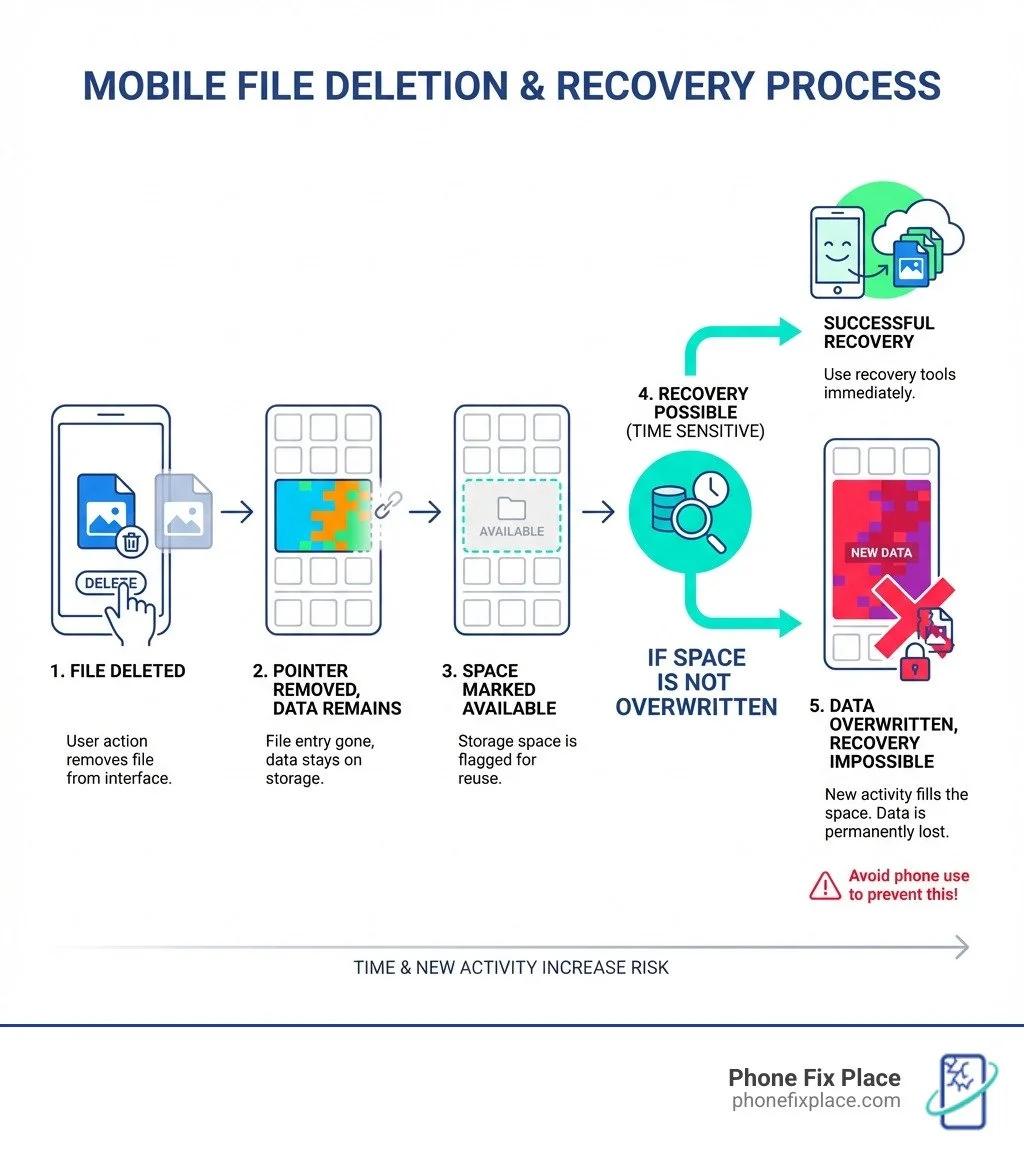
Important: When you delete a file, it doesn't disappear right away. The space it occupies is simply marked as "available for use." This means anything you save after deletion could overwrite that space, making recovery impossible.
We've all been there. You're scrolling through your gallery, trying to delete a blurry photo, and suddenly realize you just deleted the wrong one—maybe the only picture of your child's first steps, or a critical work document you needed for tomorrow's meeting. That moment of panic is universal, and it's completely valid.
The good news? In many cases, those files aren't truly gone yet. The bad news? Every second counts, and what you do next matters tremendously.
I'm Cyndi Anastasio, owner of The Phone Fix Place in Albuquerque, and after nearly 14 years as an engineer at Intel followed by years specializing in data recovery and micro-soldering repairs, I've helped countless people steer how to recover deleted files in mobile devices—often recovering irreplaceable memories and critical business data. This guide walks you through everything from immediate first steps to advanced recovery techniques, written in plain English without the technical jargon.
First Steps: What to Do Immediately After Deleting a File
That sinking feeling is a clear signal: act now! The single most important thing you can do right after deleting a file is to stop using your mobile device as much as possible. This might sound drastic, but it's the best way to maximize your chances of successful recovery.
Here's what we recommend:
Stop all activity: Don't take new photos, record videos, download apps, browse the web, or even receive many new messages. Every action writes new data to your phone's storage.
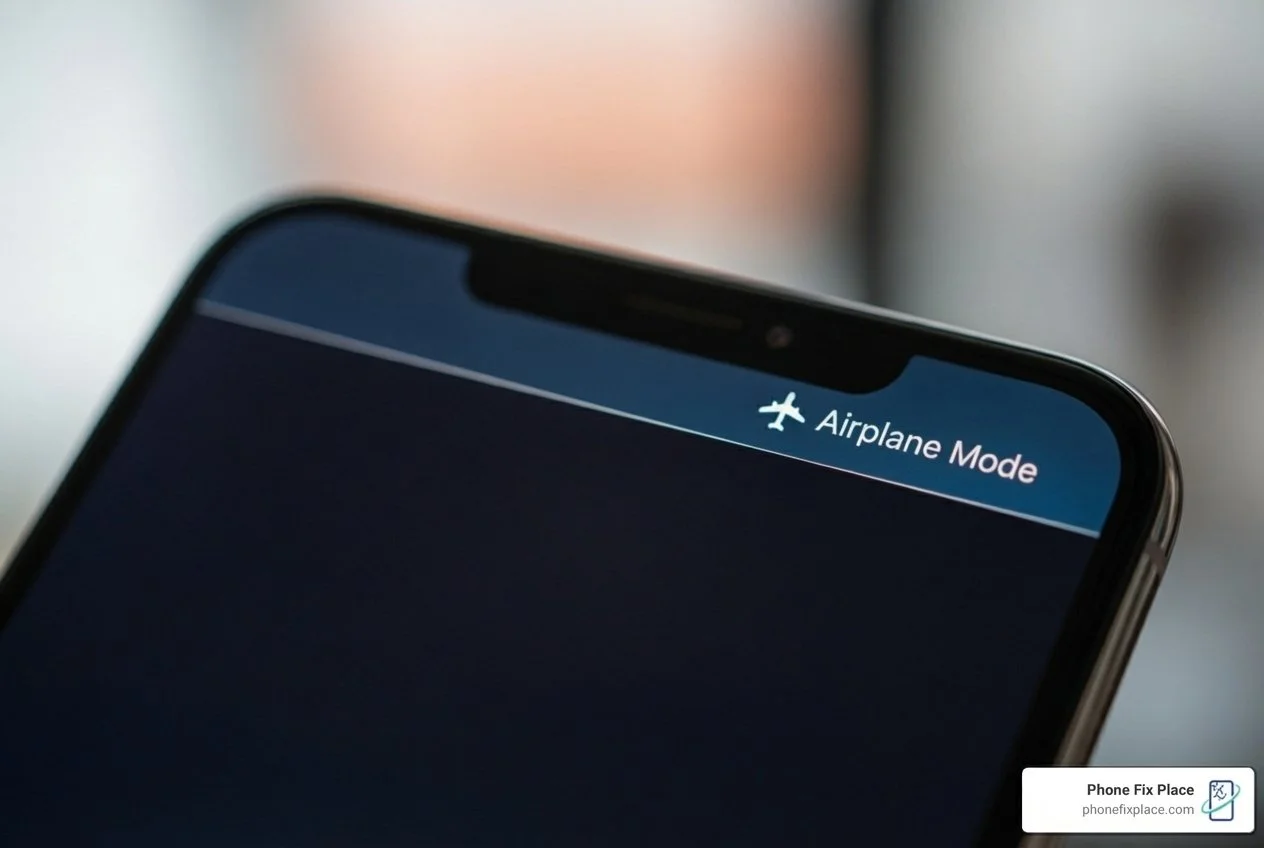
Enable Airplane Mode: This disables Wi-Fi, mobile data, and Bluetooth, preventing your phone from receiving new information (like emails, social media updates, or app notifications) that could inadvertently overwrite your deleted files.
Disable Wi-Fi and Mobile Data manually: If Airplane Mode isn't an option for some reason, at least turn off your internet connections.
The goal is simple: prevent new data from being written to your device. When a file is "deleted," the operating system doesn't actually wipe it from storage. Instead, it marks the space the file occupied as "unused" and available for new data. Until new data is written over that specific spot, the original file's fragments might still be recoverable.
Why Acting Fast is Crucial
Think of your phone's storage like a library. When you "delete" a book, the librarian doesn't immediately burn it. Instead, they just remove its entry from the catalog and mark its shelf space as "empty." The book is still physically there until a new book comes along and takes its place. If you rush to that shelf before a new book arrives, you can still retrieve your "deleted" book. If a new book gets shelved, your old one is gone.
This analogy highlights the critical role of data overwriting. Modern mobile devices, especially those with solid-state drives (SSDs) or NVMe storage, use a technology called TRIM. TRIM helps to optimize performance and longevity by actively "cleaning up" these marked-as-unused spaces. This means that the "empty" shelf space might not stay empty for long. TRIM can quickly erase the data fragments, making recovery impossible even if nothing new was explicitly saved. The faster you act, the better your chances of getting to those files before TRIM or new data overwrites them.
Avoid Common Recovery Pitfalls
In your haste to recover files, it's easy to make mistakes that can further jeopardize your data. Here are some common pitfalls we see at Phone Fix Place:
Installing new apps: Even downloading a recovery app can write new data over your deleted files. If you need a recovery app, try to download it to a computer first, or ensure it's a very small file and you have plenty of free space elsewhere on your device.
Taking new photos or videos: Your camera app is one of the quickest ways to write large amounts of new data, potentially overwriting what you're trying to recover.
Downloading files or browsing heavily: Any internet activity that involves downloading content (even temporary browser caches) can lead to data overwriting.
For more detailed insights into what not to do, we've put together a guide on common recovery mistakes.
Check Your Phone’s Built-in Safety Nets
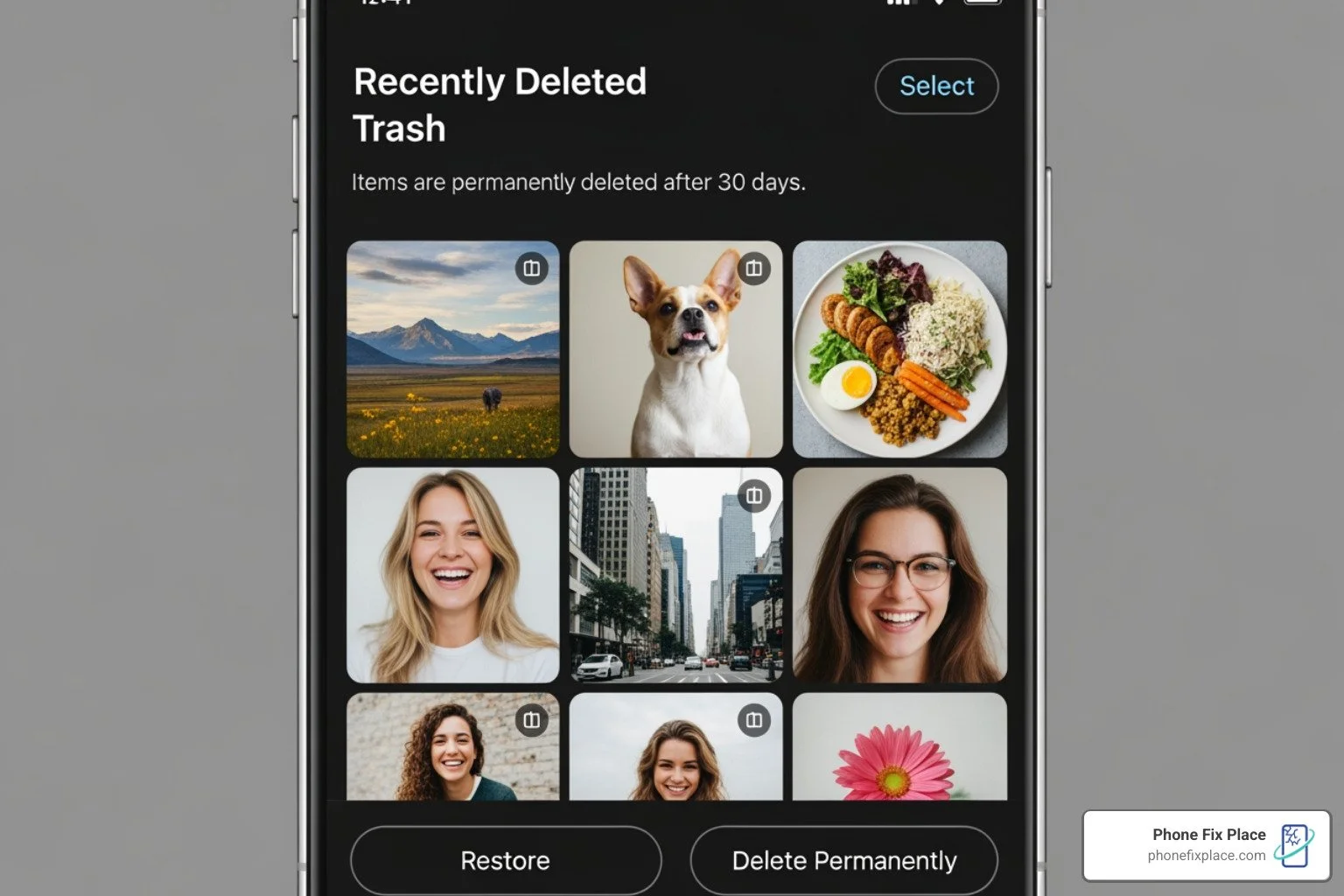
Before diving into complex recovery methods, always check your device's built-in "safety nets." Many mobile operating systems and apps now include a Recycle Bin, Trash folder, or "Recently Deleted" album that temporarily holds files before permanent deletion. This is often the easiest and quickest way to recover your files.
Finding the Recycle Bin on Your Device
Mobile device manufacturers have increasingly adopted recycle bin features, similar to what you'd find on a desktop computer. However, they might be named differently or located within specific apps.
Gallery/Photos App: Most Android phones, like Samsung devices, have a "Recycle Bin" or "Trash" within their Gallery or Photos app. For example, on a Samsung device, you can usually:
Open the Gallery app.
Tap on the Menu (often three lines or dots).
Select "Recycle Bin" or "Trash."
Choose the photos or videos you want to restore and tap "Restore."
Items in the Recycle Bin are typically kept for 30 days before being permanently deleted. However, this can vary; some apps may only keep files for 15 days, so it's always best to check your specific app's settings.
My Files/File Manager App: For other types of files (documents, downloads, audio), your device's "My Files" or "File Manager" app might have its own Recycle Bin. On Samsung:
Open the Samsung folder and tap "My Files."
Tap on "Recycle bin."
Select the desired files and tap "Restore."
Again, these files are usually permanently deleted after 30 days.
Other Apps: Some messaging apps or specific document editors might have their own "Trash" or "Archived" sections. For instance, if you've deleted a message, check the messaging app's menu for these options.
These built-in features are your first line of defense, offering a simple way to recover deleted files on mobile without needing external tools.
Recovering from Cloud Backups
Cloud storage is a fantastic safety net, and often, files deleted from your device are still safe and sound in the cloud, or at least in the cloud service's own "trash" folder.
Google Drive: If your files were synced to Google Drive, you might be in luck. Files deleted from Google Drive are kept in its Trash for 30 days before being permanently deleted. To restore a file
Open your Google Drive App.
Go to the "Trash" section.
Next to the file you want to recover, tap Menu (three dots).
Tap "Restore."
You can find a detailed guide on Restore a deleted file in Google Drive. That permanently deleted files from services like Gmail, Google Photos, or WhatsApp backups cannot be recovered through Google Drive itself if they were permanently removed from their respective services.
Google Photos: Deleted photos and videos from Google Photos are kept in its Trash for 60 days before being permanently deleted. This gives you a generous window to retrieve precious memories.
Dropbox: If you use Dropbox, you can also recover deleted files from their cloud-synced versions. Even if TRIM has eliminated local instances of your files, they might still be available in the cloud. To access them, visit Dropbox’s site in your browser, sign in, and look for the "Deleted files" option in the menu.
WhatsApp: While not a general "trash" feature, if you've accidentally deleted WhatsApp chats, you might be able to recover them. WhatsApp usually creates daily backups. By uninstalling and reinstalling the app, you'll often be prompted to restore from your most recent backup.
Cloud services are incredibly convenient for recovery because they are unaffected by local device actions like TRIM. If your files were stored in a cloud-enabled service's folder, you can often redownload them even if their local copies are gone.
Advanced Guide on How to Recover Deleted Files on Mobile
When built-in options and cloud backups don't yield results, it's time to consider more advanced methods. This often involves specialized software and can differ significantly depending on where your files were stored.
| Feature | Internal Storage Recovery | SD Card Recovery |
|---|---|---|
| Ease of Process | Difficult, often requires rooting. | Easier, as the card can be removed and scanned externally. |
| Rooting Required | Yes, for a deep scan and unrestricted file system access. | No, usually not required as the SD card can be connected to a computer via a card reader. |
| Tools | On-device apps (DiskDigger, limited without root), PC software with device connected (Disk Drill, PhoneRescue - often requires root). | PC-based software (PhotoRec, Disk Drill, Recuva) used with a card reader. |
| Encryption | Significant challenge; Modern Android's file-based encryption can block PC software access without root or decryption. | Generally less of an issue unless the SD card itself was encrypted by the device. Decrypting the card on the original device might be necessary first. |
| TRIM Impact | High; TRIM can quickly erase data fragments, especially on newer devices. | Lower; While TRIM affects the device's internal storage, it might not directly affect the SD card in the same way, making recovery potentially more successful if the card is removed quickly. |
| Chances of Success | Lower without root access; Higher with root and quick action before overwriting/TRIM. | Higher, especially if the card is removed immediately after deletion and scanned with powerful software. |
| Risks | Rooting can void warranty, brick device if done incorrectly; Risk of further data overwriting during app installation/scans. | inimal risk to the SD card itself if handled correctly; Ensure recovery is to a different drive to prevent overwriting. |
How to Recover Deleted Files in a Mobile from an SD Card
Recovering files from an SD card is generally much easier than from internal storage. Why? You can remove the card from your mobile device and connect it directly to a computer using a card reader. This bypasses many of the security and access limitations imposed by the phone's operating system.
Here's a general approach:
Remove the SD Card: Safely eject the SD card from your mobile device.
Connect to a Computer: Insert the SD card into a card reader, and then connect the card reader to your PC or Mac.
Use Recovery Software: There are several excellent PC-based data recovery programs designed for external media. One highly recommended free and open-source option is PhotoRec.
PhotoRec is capable of recovering a wide variety of file types, not just pictures, from various storage devices, including SD cards. It works by looking for file headers, allowing it to recover data even if the file system is damaged.
When using PhotoRec, it's crucial to recover the files to a different drive or folder on your computer, not back to the SD card itself. This prevents any recovered data from overwriting other potentially recoverable files on the card. You can find detailed instructions on Learn about PhotoRec recovery.
Other tools like Disk Drill for Windows can also scan SD cards for deleted data.
The key advantage here is that the computer can access the SD card's raw data directly, without the phone's operating system interfering. This significantly increases the chances of successful recovery.
How to Recover Deleted Files in a Mobile from Internal Storage
This is where things get a bit more complicated. Recovering deleted files from a mobile device's internal storage often presents significant challenges due primarily to security features and modern storage technologies.
The Rooting Requirement: For a truly deep scan of your phone's internal memory, you generally cannot recover a deleted file from internal storage unless the phone is rooted. Rooting grants administrative-level, unrestricted access to the Android operating system and its underlying file system. Without root access, most recovery software can only perform a "limited" search, scanning existing storage and caches, which is less effective.
Some apps, like DiskDigger, claim limited recovery capabilities on non-rooted devices (primarily for photos by scanning caches and thumbnails). However, its paid version, DiskDigger Pro (around $3), offers more comprehensive recovery for other file types and performs a full memory search on rooted devices.
While rooting can increase recovery chances, it also carries risks, such as potentially voiding your warranty or, if done incorrectly, "bricking" your device.
File Encryption Challenges: Modern Android devices use file-based encryption by default. This encryption is a major roadblock for data recovery software running on a PC. If your device isn't rooted and decrypted, a computer-based recovery tool often can't make sense of the encrypted data, even if it could access it. This means that even with a USB connection, simply plugging your phone into a computer and running recovery software might not work.
TRIM Command Impact: As mentioned earlier, the TRIM command on modern SSD-based internal storage can quickly "zero out" the space previously occupied by a deleted file. If TRIM has "mangled" your files and you don't have root access to perform a very deep, low-level scan, recovery might become impossible.
Given these complexities, if you're attempting to recover deleted files in a mobile from internal storage and built-in methods have failed, you might need to consider professional smartphone repair and data recovery services. At Phone Fix Place, we understand these intricate challenges and have the specialized tools and expertise to tackle even the most difficult internal storage recovery cases. More info about smartphone repair
Prevention: Your Best Defense Against Future Data Loss
While we're here to help you recover lost data, our ultimate goal is to help you avoid that panicked feeling altogether. The best way to deal with data loss is to prevent it from happening in the first place. This means establishing robust backup strategies.
Setting Up Automatic Cloud Backups
Cloud services are incredibly convenient for continuous, hands-off backups. Once set up, they often work in the background, ensuring your data is always protected.
Google Photos: Set Google Photos to automatically back up all your photos and videos. Deleted items stay in the Google Photos Trash for 60 days.
Google Drive/Google One: For documents, app data, and other files, Google Drive (or the expanded storage of Google One) can automatically sync important folders. Make sure your device's backup settings are enabled to include app data, contacts, and call history.
Manufacturer Clouds: Many phone manufacturers offer their own cloud backup services, such as Samsung Cloud. Explore your device's settings to see what automatic backup options are available and ensure they are active.
Dropbox/Other Cloud Services: If you use other cloud services, ensure your important files are regularly synced. Many offer options to sync automatically when connected to Wi-Fi.
Best Practices for Cloud Backups:
Verify Sync Settings: Periodically check your cloud app settings to ensure automatic backups are still enabled and functioning correctly.
Wi-Fi Only Backups: Configure backups to occur only over Wi-Fi to save mobile data.
Regular Review: Glance at your cloud storage occasionally to confirm your files are indeed being backed up.
Local Backup Strategies
While cloud backups are great, having a local backup (on a computer or external hard drive) provides an extra layer of security.
Connecting to a PC/Mac:
Connect your mobile device to your computer using a USB cable.
On your phone, select the "File Transfer" (MTP) option when prompted.
Open File Explorer (Windows) or Finder (Mac).
Steer to your phone's internal storage or SD card.
Manually copy and paste important folders (like "DCIM" for photos, "Documents," "Downloads") to a dedicated backup folder on your computer.
Dedicated Backup Software: Some manufacturers or third-party developers offer desktop software that can create comprehensive backups of your entire device.
External Hard Drives/USB Drives: You can directly back up some Android devices to external USB drives using an OTG (On-The-Go) adapter.
List of Best Backup Practices:
Automate Everything Possible: Leverage automatic cloud backups for photos, contacts, and documents.
Duplicate Critical Data: For truly irreplaceable files, consider having them in at least two places (e.g., cloud and local backup).
Regular Schedule: Set a routine for manual local backups, perhaps once a month, to capture anything not covered by cloud sync.
Organize Your Files: A well-organized file system makes backing up easier and ensures you don't miss important folders.
Test Your Backups: Occasionally, try restoring a small file from your backup to ensure the process works.
Frequently Asked Questions about Mobile File Recovery
We often hear similar questions from our customers in Albuquerque regarding deleted files. Here are some of the most common ones:
Where do deleted files actually go on a mobile phone?
This is a common misconception! When you "delete" a file on your mobile phone, it doesn't immediately vanish into the digital ether. Instead, the operating system performs a few key actions:
Pointer Removal: The system removes the "pointer" or "entry" to that file from its file allocation table. This is like removing a book's entry from a library catalog.
Space Marked as Available: The storage space that the file occupied is then marked as "available" for new data.
Data Remains (Temporarily): The actual data (the "book" itself) remains physically on the storage device until new data is written over it.
This is why recovery is often possible: the data is still there, just hidden and waiting to be overwritten. However, modern storage technologies, particularly SSDs and NVMe drives, with their TRIM command, can quickly "zero out" these marked-as-available spaces, making recovery much more challenging and time-sensitive.
Does rooting my phone guarantee file recovery?
No, rooting your phone does not guarantee file recovery, but it significantly increases your chances, especially for files on internal storage. Here's why:
Unrestricted Access: Rooting an Android device gives you administrative-level, unrestricted access to the entire operating system and its file system. This allows data recovery software to perform much deeper, sector-by-sector scans of the internal memory, looking for fragments of deleted files that would otherwise be inaccessible.
Bypassing Security: Without root, Android's multi-user security approach restricts apps from accessing certain parts of the storage, limiting what recovery tools can find.
Limitations: Despite the improved access, rooting doesn't overcome all obstacles. If the data has been overwritten by new files or "mangled" by the TRIM command, even a rooted device might not yield successful recovery. Furthermore, file encryption on modern devices can still pose a challenge, even with root access, unless the encryption can be bypassed or decrypted.
Rooting gives you the tool for a better chance, but it doesn't eliminate the underlying physical realities of data storage and overwriting.
Can I recover files after a factory reset?
Recovering files after a factory reset is extremely difficult, and for the average user, it's often impossible. A factory reset is designed to wipe user data and return the device to its original state. Here's why it's so challenging:
Data Erasure: A factory reset typically performs a secure wipe, not just a simple deletion. This means it actively overwrites the storage space, making it much harder for recovery software to find any remnants of the original data
Encryption: Many modern phones encrypt their storage by default. After a factory reset, the encryption keys are often changed or destroyed, rendering any remaining data virtually unrecoverable without the correct key.
Overwriting: The process of resetting and reinstalling the operating system and default apps writes a significant amount of new data, further overwriting any lingering fragments of your old files.
While some professional data recovery services might have a slim chance with highly specialized tools in very specific circumstances (e.g., if it was a "quick format" rather than a full, secure wipe), for most users, a factory reset should be considered a permanent data loss event. This underscores the critical importance of regular backups before performing any major device reset.
When to Call the Professionals for Data Recovery
Sometimes, despite your best efforts, the files remain elusive. This is when it's time to consider professional data recovery services. At Phone Fix Place in Albuquerque, we specialize in helping individuals and businesses retrieve their valuable data when all else fails.
You should consider calling us if:
Physical Damage: Your phone has suffered physical damage (e.g., water damage, impact damage, it won't turn on). DIY recovery is nearly impossible in these scenarios and can cause further harm.
Failed DIY Attempts: You've tried all the methods outlined in this guide, and your files are still missing.
Critical Data: The data you've lost is absolutely critical—irreplaceable photos, essential business documents, or sensitive personal information.
Complex Issues: You suspect file system corruption, encryption issues, or other advanced problems that are beyond standard software solutions.
At Phone Fix Place, we understand the emotional and practical impact of data loss. With nearly 14 years of experience, we bring expertise and specialized tools to tackle even the most challenging data recovery cases from mobile devices. We offer free diagnostics, same-day service for many repairs, and a one-year warranty on all our work. We prioritize the confidentiality and security of your data throughout the recovery process, handling your files with the utmost care and maintaining strict protocols to protect your privacy.
Don't give up on your precious memories or vital documents. If you're in Albuquerque and need expert help with how to recover deleted files on mobile, reach out to us. We're here to help you get your data back! When you need professional data recover