What Are Hidden Files and Why Can't You See Them?
How to recover hidden files in android mobile depends on whether your files are just hidden or actually deleted. Here's the quick answer:
Quick Recovery Methods:
| For intentionally hidden files | Enable "Show hidden files" in your File Manager settings |
| For hidden photos/videos | Turn on "View hidden albums" in your Gallery app settings |
| For files in folders with .nomedia | Delete the .nomedia file in that folder using a file manager |
| For deleted hidden files | Check your Gallery's Trash/Recycle Bin first, or use data recovery software as a last resort |
Hidden files on Android aren't usually lost - they're just invisible. Android allows you to hide files for privacy (like personal photos) or for system integrity (like app data and temporary files). Sometimes folders become hidden when their names start with a dot, like ".myprivatefiles". Other times, a tiny file called ".nomedia" tells your Gallery app to ignore everything in that folder.
The confusion happens when you can't remember how you hid something, or when an app hides files automatically. System files stay hidden to prevent you from accidentally deleting something important. But your personal files? Those can usually be recovered with a few simple steps.
As Cyndi Anastasio, owner of The Phone Fix Place, I've spent years recovering data that people thought was gone forever - from micro-soldering damaged storage chips to using advanced recovery techniques for corrupted drives. How to recover hidden files in android mobile is one of the most common questions I hear, and the good news is that most "lost" files are just hidden, not deleted.
First Steps: Finding Existing Hidden Files with Built-in Tools
When you're trying to figure out how to recover hidden files in android mobile, the first place we always recommend looking is right on your device itself. Many Android phones have built-in features that allow you to manage file visibility. The process is surprisingly similar to how you might view hidden files on a Windows computer.
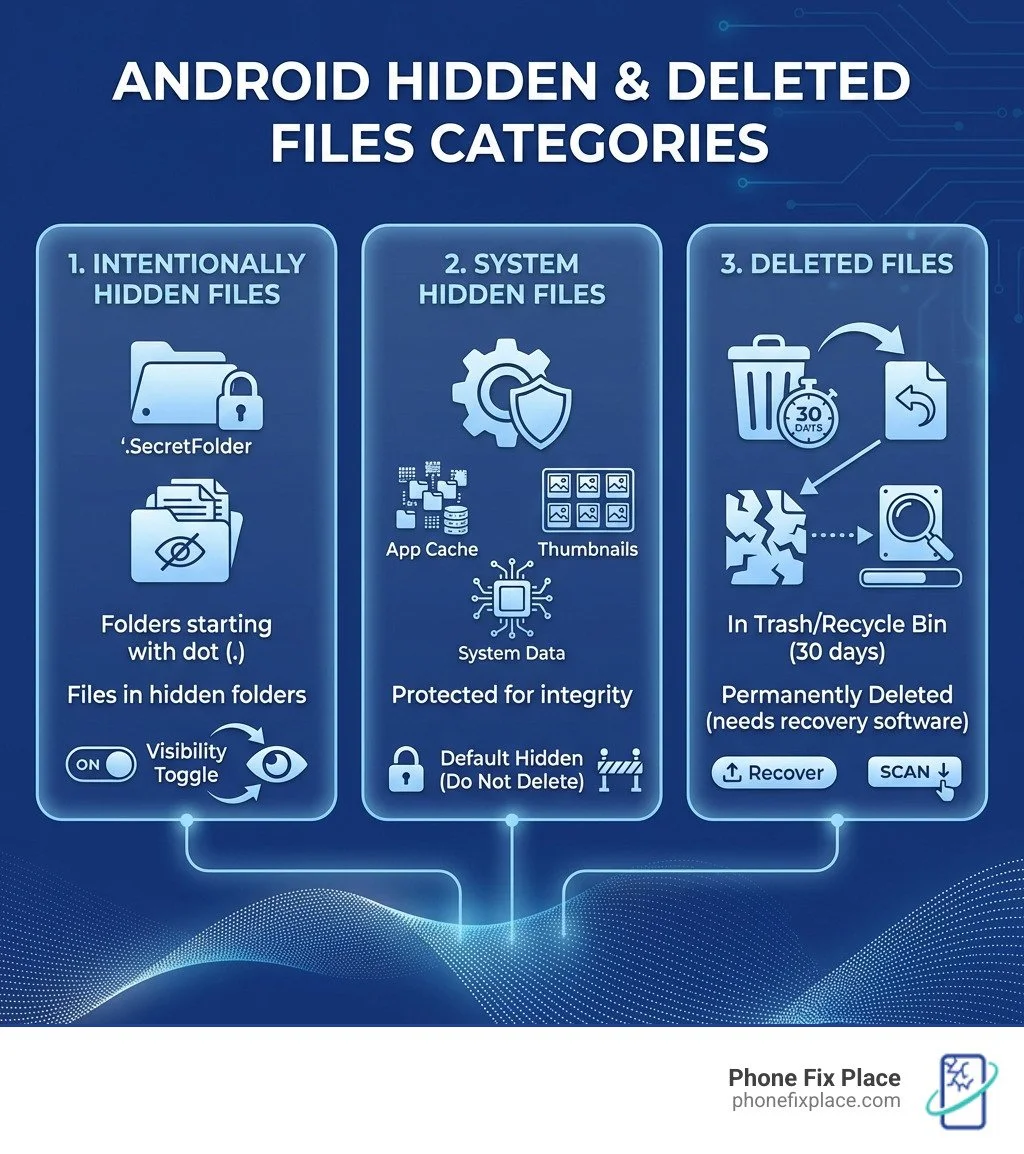
Hidden files on Android are primarily used for three reasons:
User Privacy: You might choose to hide certain files, like personal photos or documents, to keep them away from prying eyes. This is a common way users safeguard personal content.
System Integrity: Android's operating system often hides critical system files and app data. This prevents accidental deletion or modification, which could cause your phone to malfunction.
Organization: Sometimes, temporary files or app data are hidden to keep your file folders tidy and uncluttered.
The good news is that if your files are merely hidden and not deleted, retrieving them can be a simple matter of toggling a setting or two.
Step-by-Step: How to Recover Hidden Files in Android Mobile Using a File Manager
Our default File Manager app is usually the most straightforward tool for finding hidden files. Most Android devices come with a pre-installed File Manager (often called "My Files," "Files," or "File Explorer").
Here’s how we usually guide our customers in Albuquerque through the process:
Open Your File Manager App: Locate and tap on your phone's File Manager application.
Access Settings: Once inside, look for a "Menu" icon (often three horizontal lines or three dots) or a "Settings" option. This is usually in the top-left or top-right corner.
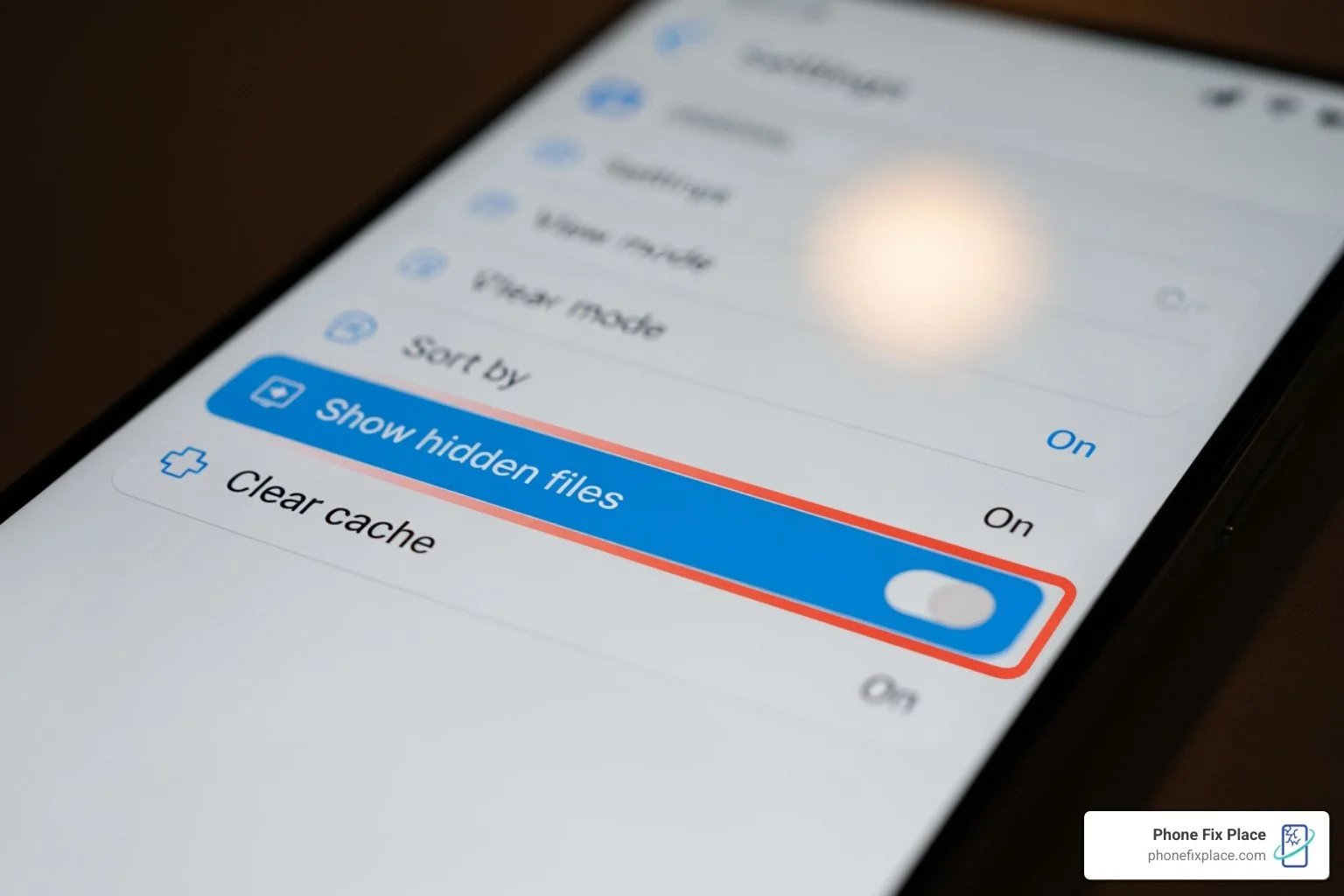
Enable "Show Hidden Files": In the settings menu, you should find an option like "Show hidden files," "Display hidden files," or "Show hidden system files." Toggle this option ON.
Steer Your Storage: Go back to the main view of your File Manager. Now, browse through your internal storage and any inserted SD card. You'll likely start seeing new folders or files that weren't visible before. Hidden folders often have names that start with a dot (e.g., ".thumbnails," ".downloads," or a folder you might have named ".private_stuff").
Unhiding Files (Optional): If you wish to permanently "unhide" a file or folder you intentionally hid, simply rename it and remove the leading dot from its name. For example, rename ".mysecretphotos" to "mysecretphotos."
Some files that appear after enabling this setting are system files crucial for your phone's operation. It's best to leave these alone to prevent any issues.
Uncovering Hidden Photos and Videos in Your Gallery
Sometimes, it's just your precious photos and videos that seem to have vanished from your Gallery. Android's Gallery app has its own way of handling hidden media, often separate from the general file manager settings.
Here’s how we can find them:
Open Your Gallery App: Launch the application you use to view your photos and videos.
Access Gallery Settings: Look for a "Menu" (three lines or dots) or "Settings" within the Gallery app.
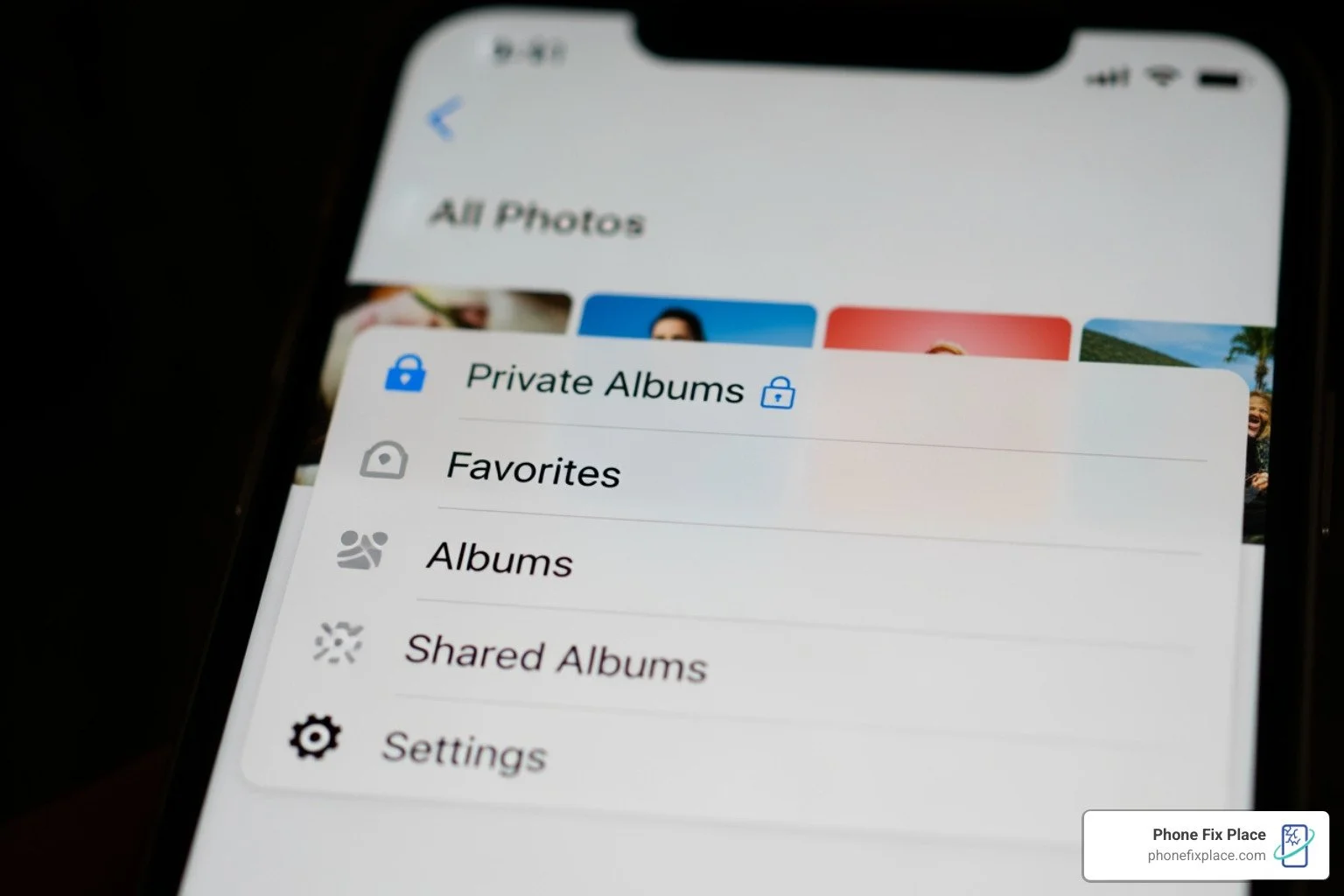
Enable "View Hidden Albums": Within the Gallery settings, search for an option like "View Hidden albums," "Hidden albums," or "Private albums." Tap on this to reveal any media you might have hidden directly through the Gallery.
Understanding the .nomedia File: The
.nomediafile is a clever little trick Android uses to hide media. If you place a file named.nomedia(it has no content, just a name) inside any folder, the Android media scanner will ignore that folder. This means any photos, videos, or music within that folder won't show up in your Gallery, music player, or other media apps. It's a great way to keep app-specific media or personal files out of your main media feeds.Removing the .nomedia File: If your media is hidden because of a
.nomediafile, you'll need to use your File Manager (with "Show hidden files" enabled) to locate it. Steer to the folder where your media is missing from the Gallery, find the.nomediafile, and simply delete it. After deleting, you might need to restart your phone or clear the cache of your Gallery app for the media to reappear.
How to Recover Hidden Files in Android Mobile: From Simple to Advanced
While finding intentionally hidden files is often straightforward, the real challenge in how to recover hidden files in android mobile comes when files are not just hidden but have been accidentally deleted, or when your phone's storage is compromised. The chances of data getting lost or possibly deleted rise significantly higher on an Android phone due to various factors like accidental formatting, software glitches, or even physical damage.
It's crucial to understand the difference between a file that's merely hidden and one that's deleted. A hidden file still exists on your device; it's just not visible through normal browsing. A deleted file, however, has been marked for overwriting, meaning its storage space is now available for new data. The longer you wait, the higher the chance that the "deleted" file's space will be overwritten, making recovery much harder.
Before we dive into more advanced methods, always consider your cloud backups and external storage.
Checking Your Cloud Backups (Google Drive & Photos)
Many of us rely on cloud services like Google Drive and Google Photos for automatic backups, often without realizing the full extent of what's being saved. If you're wondering how to recover hidden files in android mobile that seem to have disappeared, your cloud storage is a goldmine for recovery.
Here's what we recommend:
Google Drive:
Search for Unorganized Files: If a file you created loses its original folder (perhaps someone deleted the folder it was in), it can become "unorganized" but not deleted. To find these files, open Google Drive on a computer or through your mobile browser (request the desktop site) and use the search bar. Type
is:unorganized. This will show you files that are still present but lack a clear folder structure. You can then move them back into "My Drive" for easier access.Check Activity Panel: If you're trying to track down a file, especially a shared one, the activity panel can be incredibly helpful. On
drive.google.com, click "My Drive" on the left, then the "info" icon (often a circle with an 'i') at the top right. This "Activity" tab shows recent changes, moves, and deletions, which can help you pinpoint where your file went.Shared Files: If you can't locate a file someone shared with you, it's possible they moved or deleted it. The person who created the file is its owner and can delete, move, rename, or restore it. We recommend contacting the person who created the file and asking them to restore it or share it again.
Deleted Folders: If you created a file in someone else's folder and they deleted that folder, your file isn't gone! It becomes unorganized and moves to "My Drive."
Lost Access to Shared Drives: If your access to a shared drive is removed, you lose access to everything within it. You'll need to contact the person who granted you access to have it restored. You can learn more about finding lost files in Google Drive by visiting this helpful resource: Find your unorganized files in Drive.
Google Photos:
Check the Trash/Bin: Google Photos has its own "Trash" or "Bin" where deleted photos and videos reside for 30 days before permanent deletion. Always check here first! Open the Google Photos app, tap "Library," then "Trash" or "Bin." You can select the items you want and tap "Restore."
By thoroughly checking your cloud backups, you might just find your "lost" hidden files were never truly gone, just safely tucked away online.
When All Else Fails: How to Recover Hidden Files in Android Mobile That Were Deleted
If your hidden files were truly deleted, and they're not in any trash folders or cloud backups, the situation becomes more complex. This is where specialized data recovery software comes into play. These tools are designed to scan your device's storage for fragments of deleted data, attempting to reconstruct them.
Here's how this process generally works:
Data Recovery Software Purpose: Data recovery software works by scanning the raw data on your device's storage. When a file is "deleted," its entry in the file system is removed, but the actual data often remains until new data overwrites it. The software tries to find these data remnants and piece them back together.
PC-Based Software: Most reliable data recovery solutions for Android are PC-based. This means you'll connect your Android phone to a computer using a USB cable. The software runs on your computer and accesses your phone's storage.
Scanning Device Storage: After connecting your phone and launching the software, you'll typically select the types of files you want to recover (e.g., photos, videos, documents). The software then performs a deep scan of your device's internal memory and any SD card. This scan can take anywhere from a few minutes to several hours, depending on the amount of data and the device's storage size.
Previewing Files: A good data recovery program will allow you to preview the recoverable files before you commit to the recovery process. This is essential to ensure you're restoring the correct data and that the files are intact. You can often see thumbnails of photos or snippets of documents.
Selective Recovery Process: Once you've previewed and selected the files you need, the software will guide you to recover them. It's best to recover them to your computer first, rather than directly back to your Android phone, to prevent overwriting any other recoverable data still on the device.
While some apps claim to recover deleted files directly on your phone, PC-based software generally offers a more robust and successful recovery rate, especially for deeply deleted files. However, it's important to act quickly. The more you use your phone after deletion, the higher the chance that the deleted files will be permanently overwritten.
For more information on professional data recovery, especially when facing complex data loss scenarios, our experts in Albuquerque are always ready to help. You can find more details about our services here: More info about professional Data Recovery.
Prevention is Key: How to Avoid Losing Your Hidden Files
We understand that finding how to recover hidden files in android mobile can be a stressful experience, but the best defense is a good offense! Taking proactive steps can save you a lot of headaches down the road. Here are our top tips for preventing future data loss, especially for your hidden files:
Regular Backups are Your Best Friend: This is the golden rule of data management. We can't stress this enough. Regularly back up all your important files – not just the hidden ones – to a cloud service (like Google Drive, Google Photos, Dropbox, or OneDrive) or an external hard drive. Cloud services often offer automatic sync, making it effortless to keep your data safe.
Understand File Hiding Features: If you choose to hide files, make sure you understand exactly how your specific phone or file manager app implements this feature. Note down the folder names or the steps you took. This prevents the "I hid it, now I can't find it" scenario.
Cautious App Permissions: Be mindful of the permissions you grant to third-party apps. Some apps might have the ability to modify or delete files, or even create hidden folders you're unaware of. Only install apps from trusted sources and review their permissions carefully.
SD Card Best Practices: If you use an SD card for storage, ensure it's a high-quality, reputable brand. Always eject it properly before removing it from your phone or computer. Corrupted SD cards are a common cause of "lost" files.
Avoid Common Data Recovery Mistakes: When data loss occurs, panic can lead to mistakes that make recovery harder. Things like continuing to use the device, formatting storage, or trying unreliable DIY methods can permanently damage your chances. We've put together a guide on common data recovery mistakes to help you avoid them: Data Recovery Mistakes Albuquerque.
By following these best practices, you'll significantly reduce the risk of losing your valuable data, hidden or otherwise.
Frequently Asked Questions about Hidden Android Files
We often get a lot of questions about hidden files here at Phone Fix Place. Let's tackle some of the most common ones to give you a clearer picture.
Why are some files hidden on my Android device automatically?
Android devices automatically hide certain files for several good reasons, primarily to ensure system stability and keep your user experience clean. These often include:
System Files: These are critical files that make your Android operating system run. Hiding them prevents accidental modification or deletion, which could cause your phone to malfunction or "brick" (become unusable).
App Cache and Data: Applications store temporary files, cached data, and configuration files. These are often hidden to prevent clutter in your file manager and to ensure apps function correctly without user interference.
Thumbnails: When you view photos or videos, your phone often creates small preview images (thumbnails). These are usually stored in hidden folders (like a
.thumbnailsfolder) to speed up media browsing and keep them out of your main gallery.Security and Privacy: Some apps, or even the Android system itself, might hide files for security or privacy reasons, especially if they contain sensitive information or are part of a secure partition.
Essentially, these files are hidden to prevent you from accidentally breaking something important or to keep your file system tidy.
Can I recover hidden system files, and is it safe?
While it is technically possible to access and even attempt to recover hidden system files using advanced tools like ADB (Android Debug Bridge) or specialized recovery software, we generally advise against it for the average user. Here's why:
Risk of OS Instability: System files are interconnected. Modifying or replacing them incorrectly can lead to severe operating system instability, frequent crashes, or even prevent your device from booting up entirely.
"Bricking" the Device: In the worst-case scenario, tampering with critical system files can "brick" your Android phone, rendering it permanently unusable. This is why these files are hidden in the first place.
No User Benefit: For most users, there's no practical benefit to recovering or interacting with hidden system files. They are not meant for user access and usually don't contain personal data you'd want to retrieve.
If you suspect a problem with your phone's system files or operating system, it's always best to seek professional help. Our team in Albuquerque specializes in Android Phone Repair and can diagnose and resolve such issues safely, without putting your device at further risk.
How does a .nomedia file work?
The .nomedia file is a simple yet effective mechanism Android uses to manage media visibility. It's a key part of how to recover hidden files in android mobile that are media-related.
Media Scanner Exclusion: Android has a "media scanner" that constantly scans your device's storage for new photos, videos, and audio files to add to your Gallery, Music Player, and other media apps. When the media scanner encounters a folder containing a file named
.nomedia, it understands that it should skip that folder and its contents.Hiding Photos from Gallery: This means if you have a folder full of pictures you don't want showing up in your main Gallery app (perhaps screenshots, app icons, or personal images), you can simply place an empty file named
.nomediainside that folder. Voila! They disappear from your Gallery.Hiding Music from Players: The same principle applies to music files. If you have audio files in a folder that you don't want your music player to list, a
.nomediafile will do the trick.Creating a .nomedia File: You can create a
.nomediafile using any file manager app. Simply steer to the desired folder, choose the option to "Create new file," and name it.nomedia(ensure there's no other extension).Deleting a .nomedia File: To "unhide" the media, you just need to delete the
.nomediafile. Use your file manager (with "Show hidden files" enabled) to locate and delete it. After deletion, you might need to restart your phone or clear the cache of your media apps for the files to reappear.
It's a powerful tool for decluttering your media apps and maintaining privacy for specific folders.
When to Call the Experts for Your Hidden Files
We've covered a lot of ground on how to recover hidden files in android mobile, from simple toggles in your file manager to checking cloud backups. While many hidden file issues can be resolved with these DIY methods, there are definitely times when it's best to call in the professionals.
Here at Phone Fix Place in Albuquerque, we often see cases where:
DIY Methods Fail: You've tried every trick in the book, but your files remain elusive. This could indicate a deeper issue than a simple setting change.
Risk of Permanent Data Loss: If you're dealing with potentially deleted files, every action you take (or don't take) can impact the chances of recovery. Incorrect attempts at recovery can overwrite data, making it impossible to get back.
Corrupted Storage: If your phone's internal storage or SD card is corrupted, accessing files becomes incredibly difficult, and attempting to fix it yourself could worsen the damage.
Physical Damage: Water damage, drops, or other physical trauma can make your phone inaccessible. In these situations, specialized tools and expertise are required to retrieve data.
Complex Scenarios: Sometimes, hidden files are part of a more complex problem, like a malware infection, a failed software update, or an issue with the phone's firmware.
Our team at Phone Fix Place in Albuquerque has years of experience in data recovery, with over 30,000+ devices successfully recovered and 40+ years of combined staff experience. We offer free diagnostics to assess your situation and provide transparent quotes. We prioritize the confidentiality and security of your data throughout the recovery process.
If your hidden files are proving too stubborn to recover, or if you're worried about damaging your device further, don't hesitate to reach out. For complex data loss, trust the professionals. Our fast, reliable, and affordable tech repair services come with a one-year warranty on all repairs, ensuring peace of mind. Visit us for professional data recovery in Albuquerque: For complex data loss, trust the professionals.