Fix Your iPhone for Free: The Ultimate Guide to iOS System Repair Software

Why Your iPhone Won't Cooperate (And How Software Can Help)
An iOS repair tool download can fix over 150 common iPhone system problems without a trip to a repair shop. Here's what you need to know:
Top iOS Repair Tool Options:
Free Features - Enter/exit recovery mode at no cost with many third-party tools.
Standard Repair - Fix boot loops, black screens, and Apple logo freezes without losing data.
Deep Repair - Solve complex issues, but this method causes data loss.
Manual Method - Download IPSW firmware files directly from Apple for advanced users.
What These Tools Fix:
iPhone stuck on Apple logo or loading screen
Boot loops and constant restarting
Black, white, or frozen screens
Recovery mode issues
Failed iOS updates or restores
iTunes error codes
Have you ever felt that sinking feeling when your iPhone freezes on the Apple logo? Or maybe your device is stuck in an endless boot loop. These aren't always hardware failures—they're often software glitches that repair tools can fix at home.
Most iOS system issues stem from corrupted software, failed updates, or incomplete restores. Before paying for professional repair, these tools can reinstall your iOS and fix the underlying problem. Many offer free features like entering and exiting recovery mode, while full repairs typically require a purchase.
The catch? You need to know which tool matches your problem, if your data will survive, and when the issue is actually hardware-related.
I'm Cyndi Anastasio, and after nearly 14 years as an Intel engineer, I now run The Phone Fix Place in Albuquerque. I've seen hundreds of customers try iOS repair tool download options before coming to our shop. Understanding what these tools can and can't do helps you decide whether to DIY or seek professional diagnostics.
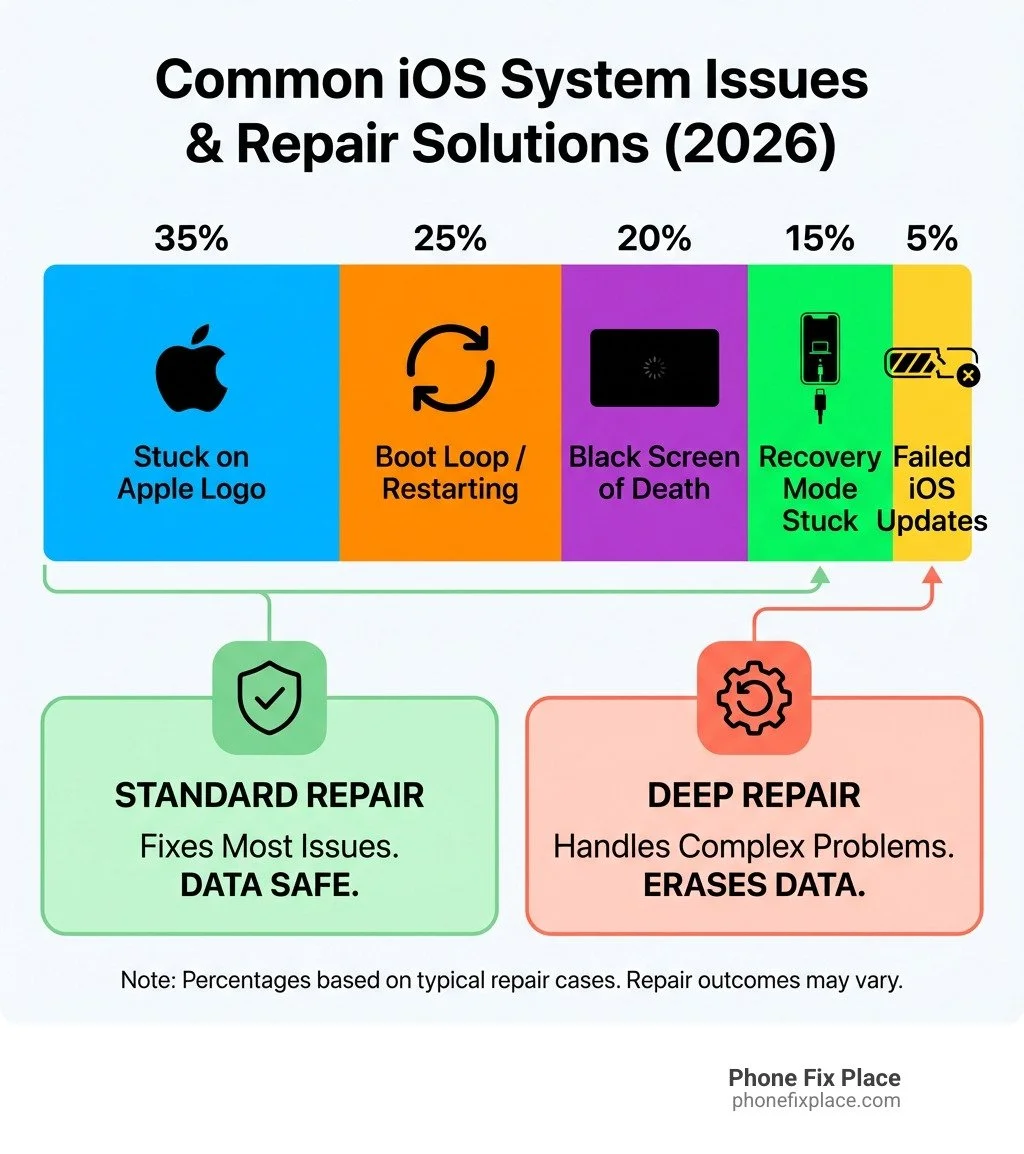
Why Is Your iPhone Acting Up? Common iOS System Issues
One moment your iPhone is working perfectly, the next it's frozen or stuck in a digital purgatory. These frustrating scenarios are often the result of common iOS system issues. Understanding them is the first step toward a solution, and many of our customers in Albuquerque come to us with these exact problems.

From the Apple Logo to a Black Screen
The most common sign of an iPhone in distress is getting stuck on the Apple logo, which means your device isn't booting up properly. This can happen after a software update or seemingly out of nowhere. The device might display the logo indefinitely or enter a "boot loop," constantly restarting without reaching the home screen.
Other display-related issues include the "black screen of death," where the screen won't light up, or a white, blue, or frozen screen. In severe cases, your iPhone might be "bricked" and won't turn on at all. These are all prime candidates for an iOS repair tool download, which can tackle over 150 different iOS, iPadOS, and tvOS system issues.
Update and Restore Errors
Software updates can go wrong, leaving your device non-functional in a boot loop or recovery mode. Similarly, restoring your iPhone from a backup can fail, sometimes with cryptic iTunes error codes like 4013 or 1110. When iTunes fails to recognize or restore your device, a dedicated iOS repair tool download can often bypass these issues and complete the process, offering a more robust solution than Apple's default methods.
How iOS Repair Software Brings Your Device Back to Life
When your iPhone has a significant software glitch, core system files may be corrupted. An iOS repair tool download acts like a digital first responder, designed to diagnose the problem and reinstall a fresh version of iOS from your computer.
The Core Repair Mechanism: Reinstalling iOS
Most iOS repair software works by reinstalling the operating system. After connecting your iPhone to a computer, the tool guides you to put your device into Recovery or DFU mode for deep access. The tool then identifies your device, downloads the correct firmware package (IPSW file), and verifies its integrity.
This fresh firmware overwrites the corrupted system on your device, fixing underlying bugs and glitches. This process can often restore functionality without wiping your personal data, depending on the repair mode chosen. These tools can address over 150 different iOS, iPadOS, and tvOS system issues. These consumer-focused tools differ from Apple Configurator, a utility for IT administrators managing devices in bulk.
Standard Repair vs. Deep Repair: What's the Difference?
An iOS repair tool download typically offers two main options: Standard and Deep Repair. Understanding the difference is crucial for your data.
Standard Repair: This is the go-to for common issues like being stuck on the Apple logo, boot loops, or recovery mode. It's designed to fix these problems without causing any data loss. Reputable tools offer a Standard Repair mode that preserves your photos, contacts, and apps, with a high success rate for over 150 system issues. It's the first and safest option to try.
Deep Repair (or Advanced Repair): This mode is for severe problems that Standard Repair can't fix. It tackles deeper system corruption but will erase all data, returning your device to factory settings. It's highly effective for a bricked iPhone or persistent software failures, but it should be a last resort when data loss is acceptable.
Using Recovery and DFU Mode for Repairs
To receive new firmware, your iPhone must be in a special state: Recovery Mode or DFU Mode.
Recovery Mode: This diagnostic state allows your iPhone to be restored. Many iOS repair tool download options offer a free "one-click" feature to enter and exit Recovery Mode, which is useful if your device is stuck. Using these tools to enter or exit this mode does not cause data loss.
DFU Mode: Device Firmware Update Mode is a deeper level of recovery that bypasses the bootloader, allowing a restore from any state. It's often the only way to get an unresponsive device recognized by a computer. However, restoring via DFU Mode will erase all data. It's a powerful but destructive tool.
A critical aspect of reinstalling iOS is using "signed firmware." Apple controls which iOS versions can be installed. If a firmware version is "unsigned," you cannot install it. This is relevant when trying to downgrade iOS. We recommend checking the signing status before any manual installations. You can learn more by visiting this tutorial: How to check if firmware is signed.
Choosing the Right iOS Repair Solution
Deciding on the best approach to fix iOS issues can be overwhelming. Should you use Apple's tools, a third-party iOS repair tool download, or the manual firmware route? Let's break down your options by ease of use, data risk, and cost.
| Feature | Built-in iPhone Utilities (iTunes/Finder) | Third-Party Repair Tools (Freemium) | Manual Firmware Methods (IPSW) |
|---|---|---|---|
| Cost | Free | Free (basic features), Paid (full) | Free (firmware), Free (iTunes/Finder) |
| Data Loss Risk | High (iTunes restore always wipes data) | Low (Standard Repair), High (Deep Repair) | High (manual restore wipes data) |
| Ease of Use | Moderate (can be complex for errors) | Easy (user-friendly interfaces) | High (requires technical knowledge) |
| Key Features | Restore, Update, Backup | 1-click Recovery Mode, Standard/Deep Repair, Downgrade/Upgrade iOS, iTunes error fix | Restore, Update |
Option 1: Using Built-in iPhone Utilities
Apple provides its own tools for restoring iOS devices through iTunes or Finder. These tools can update your iPhone, create backups, and perform a full restore.
Restore via iTunes/Finder: This method reinstalls iOS but can be frustrating if your device isn't recognized or the process fails with errors. A full restore via iTunes or Finder will erase all data. It's a blunt instrument that sacrifices data.
Factory Reset via Settings: You can also perform a factory reset from your iPhone's settings (Settings > General > Transfer or Reset iPhone > Erase All Content and Settings). This also wipes all data and requires a functional phone.
While free, these options lack the data-preserving capabilities of dedicated repair tools.
Option 2: The Freemium iOS Repair Tool Download
Most dedicated iOS repair tool download options operate on a "freemium" model, offering basic features for free and comprehensive repairs for a fee.
Free Features: Many tools provide a free "one-click" solution to enter and exit Recovery Mode, which is a lifesaver if your iPhone is stuck.
Paid Upgrades: The full, paid versions open up their true potential. They offer Standard Repair (to fix 150+ issues without data loss) and Deep Repair (for severe problems, with data loss). These tools are user-friendly, guiding you step-by-step through complex operations. They may also include features like downgrading iOS, fixing iTunes errors, and resetting your iPhone without a passcode. Paid software generally offers better security, more robust features, and technical support.
System Requirements: These tools run on Windows or macOS and have modest system requirements. A stable internet connection is essential for downloading firmware. They are compatible with a wide range of devices and iOS versions.
Option 3: Manual Repair with Firmware (IPSW) Files
Advanced users can manually download iOS firmware (IPSW files) and use iTunes/Finder to restore their device. This method requires technical knowledge.
IPSW Download Sites: Certain websites provide direct download links for IPSW firmware files for various Apple devices.
Signed Firmware: Apple only allows you to install "signed" firmware. If you download an older, unsigned IPSW file, the restore will fail. Always check the signing status first.
Manual Restore: With the correct IPSW file, you can put your device into Recovery or DFU Mode and use iTunes/Finder to restore it. This method will erase all data.
Advanced Users & Risk: This option is for technically proficient users. For most people, a dedicated ios repair tool download offers a more guided and less error-prone experience.
Are iOS Repair Tools Safe?
The digital world is full of pitfalls. When you're looking for an iOS repair tool download, it's natural to ask: are these third-party tools safe? Many reputable tools are, but it's crucial to be vigilant. We always advise our customers in Albuquerque to exercise caution.
Potential Risks and How to Avoid Them
Using third-party iOS repair software isn't without risks. Here’s what to watch for:
Data Security and Privacy: Unreputable tools might contain malware or collect personal data. Reputable developers state their tools are safe, virus-free, and don't collect private data.
"Bricking" Your Device: Poorly coded software could corrupt your iPhone's firmware, rendering it unusable. Choose established, well-reviewed options.
Voiding Your Warranty: Using software to reinstall official Apple firmware generally doesn't void your warranty. However, tools that jailbreak or make unauthorized modifications could impact it.
How to Avoid Risks:
Download from Official Sources: Always get your iOS repair tool download directly from the developer's official website to avoid malware.
Read Reviews: Check reviews from trusted tech sites and forums.
Back Up Your Device: Before any repair, back up your iPhone to iCloud or your computer. This is your ultimate safety net.
Free vs. Paid Tools: A Cost-Benefit Analysis
The "free" aspect of an iOS repair tool download is appealing, but it's important to understand the trade-offs.
Free Tool Limitations: Most free tools offer basic features, like one-click entry/exit for Recovery Mode. However, fixing complex issues like a boot loop or black screen without data loss usually requires a paid version.
Paid Tool Benefits: Paid versions open up the full suite of features, including Standard and Deep Repair modes. The value extends beyond features to include:
Higher Success Rates: Paid tools use advanced algorithms and are regularly updated.
Technical Support: Access to customer support is invaluable if you run into trouble.
Regular Updates & Security: Paid software is updated frequently for new iOS versions and has better security protocols.
An investment in a paid tool often provides a more reliable and secure solution, potentially saving you the higher cost of a professional repair.
Frequently Asked Questions about iOS Repair
We often hear similar questions from our customers in Albuquerque about an iOS repair tool download. Let's clear up the most common concerns.
Can these tools fix hardware problems?
No, an iOS repair tool download is designed to fix software-related issues only, not hardware problems. These tools work by reinstalling your iPhone's operating system. They cannot fix a broken screen, a failing battery, or water damage.
If your iPhone has physical damage, isn't holding a charge, or has stopped working after a drop, it's almost certainly a hardware issue. For hardware repairs, you'll need professional diagnostic services, like those we offer at Phone Fix Place.
Will I lose my data when using an iOS repair tool download?
This depends on the repair mode you choose:
Standard Repair Mode: For most common iOS issues (like being stuck on the Apple logo or in a boot loop), this mode is designed to fix your device without losing any data. Reputable tools prioritize data preservation in their Standard Repair options.
Deep Repair Mode: For severe issues that Standard Repair can't fix, this mode is the next step. However, it will erase all data on your device, returning it to factory settings. Use it as a last resort.
Entering/Exiting Recovery Mode: Using the free one-click features to enter or exit Recovery Mode does not cause data loss.
Importance of Backups: We always recommend having a recent backup of your iPhone. It's the best insurance against unexpected data loss.
How do I know which iOS version I can install?
Apple controls which iOS versions can be installed through "firmware signing."
Signed Firmware: You can only install an iOS version that Apple is currently "signing" or authorizing.
Unsigned Firmware: Shortly after a new iOS release, Apple stops signing older versions, meaning you can no longer downgrade to them.
IPSW Websites: To check which firmware versions are currently signed for your device, you can visit informational websites like IPSW.me.
Downgrade Limitations: While some iOS repair tool download options help downgrade iOS, it's only possible if the target version is still being signed by Apple.
Understanding this is vital to avoid "restore failed" errors.
Conclusion: When to DIY and When to Call a Pro
Navigating iOS repair tool download options can empower you to tackle many common iPhone and iPad software issues right from your home. The benefits are clear: potentially saving money, avoiding a trip to a repair shop, and getting your device back up and running quickly. For software-only issues like a persistent boot loop, a device stuck on the Apple logo, or an unresponsive screen due to a software glitch, these tools offer a robust and often data-preserving solution
However, it's equally important to recognize the limitations. As we've discussed, these powerful software tools are not a cure-all for hardware problems. If your iPhone has physical damage, has been dropped in water, or is exhibiting signs of battery failure, no software download will fix it.
Here's our advice from Phone Fix Place in Albuquerque:
Start with DIY for Software Issues: If you suspect a software glitch (e.g., your phone suddenly froze, got stuck after an update, or is in a boot loop without any physical damage), try a reputable ios repair tool download using its Standard Repair mode. Remember to download from official sources and back up your data first!
Recognize Hardware Damage: If there's any sign of physical damage, liquid exposure, or if your device simply won't respond despite software attempts, it's time to consider professional help.
When in Doubt, Call a Pro: Sometimes, a software issue can mimic a hardware problem, or vice-versa. If you're unsure or if your DIY attempts with an iOS repair tool download haven't resolved the issue, don't hesitate to seek expert advice.
At Phone Fix Place in Albuquerque, we specialize in fast, reliable, and affordable tech repairs for phones, tablets, computers, and gaming consoles. We offer free diagnostics to pinpoint the exact problem with your iPhone, ensuring you don't spend money on unnecessary repairs. Our same-day service means you'll get your device back quickly, and we stand behind our work with a one-year warranty on all repairs.
So, whether you've tried an iOS repair tool download and it didn't quite do the trick, or you suspect a hardware issue from the start, we're here to help get your iPhone back to perfect working order.