Unlock Your Keys: A Guide to Resolving MacBook Keyboard Problems

When Your MacBook Keys Let You Down
A MacBook keyboard fix often starts simpler than you think. Before panicking about expensive repairs, most keyboard issues can be resolved through basic troubleshooting steps that take just minutes to try.
Quick MacBook Keyboard Fix Checklist:
Restart your Mac - Uncheck "Reopen windows when logging back in."
Check software settings - Disable Mouse Keys and Slow Keys in Accessibility settings
Clean with compressed air - Hold MacBook at a 75-degree angle, spray left to right
Reset PRAM/NVRAM - Hold Command+Option+P+R during startup
Reset SMC - Different steps depending on your MacBook model
Check for service programs - Butterfly keyboards (2015-2019) may qualify for free repair
When to seek professional help: If keys remain unresponsive after cleaning, you notice battery swelling, or multiple keys fail simultaneously, hardware replacement may be necessary.
MacBook keyboards fail for many reasons. Sometimes it's just a speck of dust under a key. Other times it's a deeper hardware problem like a swollen battery pushing against the keyboard from below, or a faulty cable inside the case.
The so-called "butterfly" keyboards that Apple used from 2015 to 2019 are especially prone to problems. A small percentage of these keyboards exhibit repeating characters, missing characters, or sticky keys that don't respond consistently. Apple acknowledged this issue and created a service program covering affected models for four four years after purchase.
Software glitches can also make your keyboard seem broken when it's actually fine. Accessibility features like Mouse Keys or Slow Keys, accidentally enabled, can make keys behave strangely. Third-party apps can interfere with keyboard input. Even corrupted system files can cause problems.
I'm Cyndi Anastasio, owner of The Phone Fix Place in Albuquerque, and after nearly 14 years as an engineer at Intel, I've diagnosed and repaired countless MacBook keyboard fix scenarios involving everything from simple debris removal to complex logic board repairs. Whether your issue requires a quick cleaning or advanced micro-soldering work, understanding what's causing your keyboard problems is the first step toward getting your MacBook working again.
First Steps: Ruling Out Software Glitches
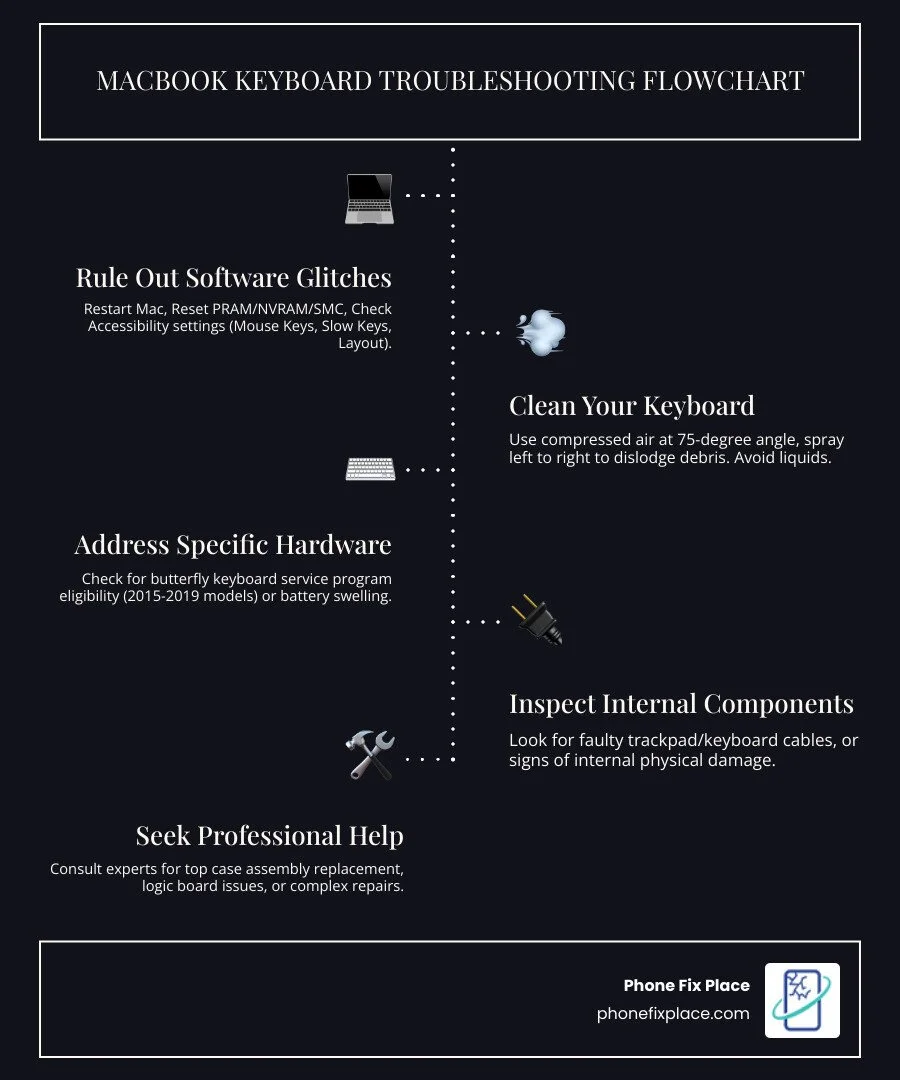
Before we dive into the nitty-gritty of hardware fixes, let's start with the easiest and often most effective solutions: ruling out software glitches. It's surprising how many "broken" keyboards are actually just confused by a software setting or a temporary bug. This is often the quickest path to a MacBook keyboard fix.
Simple Software Solutions: Your First MacBook Keyboard Fix
When your MacBook keyboard acts up, our first recommendation is always to start with these basic software troubleshooting steps. They're quick, easy, and can often resolve the issue without needing to open your laptop or spend a dime.
Restart Your Mac: This might sound too simple, but it's a classic for a reason. A fresh restart can clear temporary software conflicts or glitches. When you restart, make sure to uncheck the "Reopen windows when logging back in" option to ensure a clean slate.
Reset PRAM/NVRAM: The Parameter RAM (PRAM) or Non-Volatile RAM (NVRAM) stores certain system settings, including keyboard preferences. Resetting it can resolve keyboard responsiveness issues. To do this, restart your Mac and immediately press and hold
Option + Command + P + Rsimultaneously. Release the keys after about 20 seconds, or after the second startup chime appears.Reset SMC: The System Management Controller (SMC) manages power, battery, fans, and other essential hardware functions. A reset can fix various hardware-related issues, including keyboard problems. The steps vary depending on your MacBook model (whether it has a T2 chip or not, and if the battery is removable). Generally, for most modern MacBooks, it involves shutting down, then holding
Shift + Control + Optionon the left side of the built-in keyboard, then pressing the power button simultaneously for 10 seconds. Release all keys and the power button, then press the power button again to turn on your Mac.Check for macOS Updates: Ensure your macOS is up to date. Apple frequently releases updates that include bug fixes and performance improvements that could address underlying software issues affecting your keyboard.
Check Your Keyboard and Accessibility Settings
Sometimes, your keyboard isn't actually broken, but its behavior has been altered by settings you or someone else (perhaps a curious cat or a small child, as one expert humorously noted) might have inadvertently changed.
Keyboard Layout: Incorrect keyboard layout settings can make it seem like keys aren't working or are producing the wrong characters. Go to System Settings > Keyboard > Text Input and click Edit. Make sure the correct keyboard layout for your region is selected. You can easily access these settings by opening your Keyboard settings.
Accessibility Features: macOS includes powerful accessibility features that can sometimes interfere with standard keyboard behavior if accidentally enabled.
Mouse Keys: This feature allows you to control the mouse pointer using the keyboard's numeric keypad. If enabled, it can prevent your regular keys from typing. You can find this in System Settings > Accessibility > Pointer Control. Make sure Mouse Keys is turned off.
Slow Keys: This feature requires you to hold down a key for a longer period before it's registered, which can make your keyboard feel unresponsive. Check System Settings > Accessibility > Keyboard and ensure Slow Keys is turned off.
Third-Party App Conflicts: Occasionally, a recently installed or updated third-party application might conflict with your MacBook's keyboard input. If your keyboard issues started after installing a new app, try uninstalling it or testing your keyboard in Safe Mode. If the keyboard works in Safe Mode, a third-party app is likely the culprit.
Cleaning Your Keyboard: The Right Way to Dislodge Debris
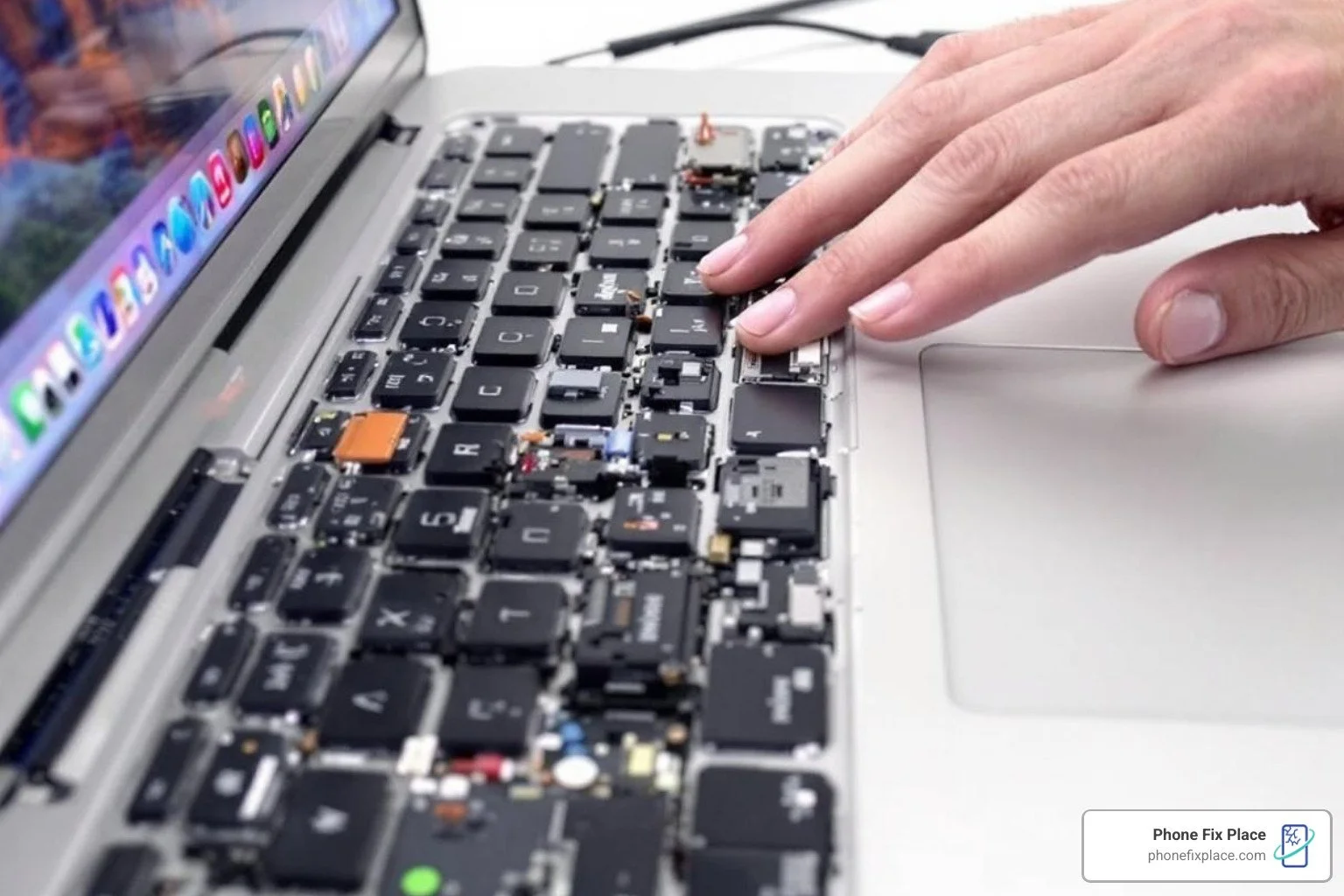
One of the most common culprits behind a malfunctioning MacBook keyboard is surprisingly simple: debris. Dust, crumbs, pet hair, or even a tiny sugar crystal from a spilled drink can get lodged under a key, causing it to stick, become unresponsive, or repeat characters. This is particularly true for certain keyboard types, which we'll discuss shortly. A good cleaning can often provide a quick MacBook keyboard fix.
The Unofficial 'Blow-on-It' TechniquE
You might remember the age-old practice of blowing into Nintendo cartridges to make them work. While scientists have debated its actual effectiveness for decades, a surprisingly similar, albeit more refined, technique can sometimes work wonders for a sticky MacBook key. Our research suggests this "blow-on-it" method can be "completely deranged yet inexplicably effective and simple" for debris-related stickiness.
Here's how to try this unique, unofficial MacBook keyboard fix:
Turn your MacBook upside down: This allows gravity to help dislodge any loose particles.
Blow forcefully with your mouth: Aim directly at the sticky or unresponsive key. The idea is to create a strong, focused puff of air to blast away any lodged debris.
Rapidly press the affected key: While still blowing, repeatedly and quickly press the problematic key. This combination of air pressure and physical agitation can often free up the mechanism.
Why mouth blowing over canned air for this specific technique? The risk with canned air is that if used upside down or for too long, it can release a freezing liquid, which is definitely not good for your electronics. Your own breath provides controlled, debris-free air pressure without that risk.
Official Cleaning Method
While the "blow-on-it" technique can be a fun, last-ditch effort, Apple itself provides official recommendations for cleaning your MacBook keyboard using compressed air. This method is specifically designed for the butterfly keyboards (2015-2019 MacBooks and 2016-2019 MacBook Pros), which are "especially prone to this sort of failure" due to their design.

Here's Apple's recommended approach for a compressed air MacBook keyboard fix:
Position your MacBook: Hold your Mac notebook at a 75-degree angle, so it's not quite vertical. This angle helps gravity assist in dislodging debris.
Use compressed air: With the straw attachment on your can of compressed air, spray the keyboard (or just the affected keys) in a left-to-right motion. Keep the end of the straw about a half-inch away from the keyboard.
Rotate and repeat:
Rotate your Mac notebook to its right side and spray the keyboard again, from left to right.
Repeat the action, this time with your Mac notebook rotated to its left side, spraying from left to right.
Safety Precautions: Always use compressed air in short bursts. Never invert the air can while spraying, as this can release liquid propellants that can damage your keyboard. This official guidance can be found on Apple's support pages.
If, after trying these cleaning methods, your keys are still unresponsive or sticky, it might be time to investigate deeper hardware issues.
Your Step-by-Step MacBook Keyboard Fix: Advanced Hardware Issues
When software troubleshooting and cleaning don't resolve your keyboard woes, it's time to consider potential hardware problems. These can range from common design flaws in specific models to more serious internal component failures. Understanding these issues is key to finding the right MacBook keyboard fix.
The Butterfly Keyboard and Service Programs
One of the most widely discussed hardware issues revolves around Apple's "butterfly" style key switches. Introduced in 2015, these keyboards were designed to be thinner and more stable than traditional scissor-switch mechanisms. However, they proved to be "especially prone to failure." Even tiny specks of dust could render keys sticky, unresponsive, or cause characters to repeat unexpectedly.
Apple acknowledged these widespread problems and launched the Keyboard Service Program for MacBook, MacBook Air, and MacBook Pro. This program covers eligible models for four years after the first retail sale of the unit. If your MacBook exhibits:
Letters or characters repeating unexpectedly.
Letters or characters not appearing.
Key(s) feeling "sticky" or not responding in a consistent manner.
You might be eligible for a free repair. The service may involve replacing individual keys or the entire keyboard.
Here is a list of eligible models covered by the program:
MacBook (Retina, 12-inch, Early 2015)
MacBook (Retina, 12-inch, Early 2016)
MacBook (Retina, 12-inch, 2017)
MacBook Air (Retina, 13-inch, 2018)
MacBook Air (Retina, 13-inch, 2019)
MacBook Pro (13-inch, 2016, Two Thunderbolt 3 Ports)
MacBook Pro (13-inch, 2016, Four Thunderbolt 3 Ports)
MacBook Pro (15-inch, 2016)
MacBook Pro (13-inch, 2017, Two Thunderbolt 3 Ports)
MacBook Pro (13-inch, 2017, Four Thunderbolt 3 Ports)
MacBook Pro (15-inch, 2017)
MacBook Pro (13-inch, 2018, Four Thunderbolt 3 Ports)
MacBook Pro (15-inch, 2018)
MacBook Pro (13-inch, 2019, Four Thunderbolt 3 Ports)
MacBook Pro (15-inch, 2019)
If you own one of these models and are experiencing keyboard issues, we highly recommend checking your eligibility for this program first.
Advanced Hardware Issues and the Ultimate MacBook Keyboard Fix
Beyond the butterfly keyboard's specific woes, other hardware problems can cause your MacBook keyboard to malfunction. These often require more in-depth diagnosis and repair.
Battery Swelling: This is a serious issue that can severely impact your keyboard. As lithium-ion batteries age, they can swell. A swollen battery exerts upward pressure on internal components, including the keyboard and trackpad. This pressure can cause keys to become unresponsive, difficult to press, or even deform the chassis. If you notice your trackpad isn't clicking properly, the bottom case is bulging, or the keyboard feels raised, a swollen battery is a likely culprit. This is a safety hazard and requires immediate professional attention.
Faulty Trackpad or Keyboard Cables: In many MacBook models, the keyboard's input signals travel through the trackpad cable before reaching the logic board. If this cable is damaged, loose, or liquid-damaged, it can interrupt communication and render your keyboard (and sometimes your trackpad) unresponsive. Similarly, the dedicated keyboard cable itself can become damaged. In some 2016-2019 MacBook Pro models, keyboard cable issues have even been linked to fan problems.
Keyboard Is Faulty (Requires Replacement): If individual keys or the entire keyboard unit has physical damage (e.g., from a liquid spill that bypasses the cleaning methods) or internal component failure, it may need to be replaced. MacBook keyboards are often "extremely difficult to replace by themselves, being riveted to the top case in most models." This means Apple's standard repair often involves replacing the entire top case assembly (keyboard, trackpad, and palm rest). While undertaking the arduous process of removing the keyboard independently is possible for the adventurous, it requires specialized tools and significant patience.
Logic Board Fault: This is the most complex and often the last resort diagnosis. The logic board is the "brain" of your MacBook, and if components on it that control keyboard input fail, the keyboard won't work. Signs of a logic board fault can include multiple seemingly unrelated issues appearing simultaneously. While full logic board replacement is an option, for those "feeling especially motivated," microsoldering can sometimes repair individual faulty components on the board. This is an art unto itself, requiring specialized skills and equipment, but it can be a cost-effective MacBook keyboard fix for a truly adventurous DIYer. You can find resources on microsoldering if you're curious.
DIY Repair vs. Professional Service: Making the Right Choice
When faced with a MacBook keyboard issue, you'll inevitably weigh the options: attempting a MacBook keyboard fix yourself or seeking professional help. Both paths have their benefits and risks.
DIY Repair:
Benefits: Can save money on labor costs, offers a sense of accomplishment, and can be quick for simple issues like cleaning.
Risks: MacBook keyboards are notoriously difficult to repair. Components are often riveted, cables are delicate, and specialized tools are required. A wrong move can lead to further damage, potentially voiding warranties (if applicable) and increasing the overall repair cost. For example, using canned air improperly can introduce liquid, or attempting to remove keycaps can break fragile clips.
Professional Service:
Benefits: Experienced technicians have the right tools and expertise to diagnose and fix complex problems efficiently. They can perform intricate repairs like logic board component work or safe battery replacements. Professional services often come with a warranty, giving you peace of mind.
Risks: Higher upfront cost compared to DIY, as it includes labor. You'll be without your device for the duration of the repair.
For common issues like debris, a DIY cleaning might suffice. However, for anything involving internal components, swollen batteries, or persistent issues after basic troubleshooting, professional repair is highly recommended. Our team at Phone Fix Place in Albuquerque sees countless MacBooks, and we can quickly diagnose the root cause of your keyboard problem, whether it's software, cleaning, or a more serious hardware issue.
DIY vs. Professional Repair Comparison
| Feature | DIY Repair | Professional Service (Phone Fix Place) |
|---|---|---|
| Cost | Lower parts cost, but potential for increased overall cost if mistakes are made | Includes labor and parts, often more cost-effective in the long run for complex issues |
| Risk | High risk of further damage, voiding warranties, or even personal injury (e.g., with swollen batteries) | Low risk, repairs performed by trained experts, often insured |
| Time | Can be very time-consuming for research, parts acquisition, and execution | Faster turnaround due to expertise and readily available parts |
| Warranty | No warranty on labor, parts warranty depends on supplier | Phone Fix Place offers a one-year warranty on all repairs, covering parts and labor |
| Tools | Requires purchasing special tools, which can be expensive and for one-time use | All specialized tools and expertise provided by technicians |
Conclusion: Preventing Future Problems and Getting Expert Help
Dealing with a malfunctioning MacBook keyboard can be incredibly frustrating, but as we've explored, there are many steps you can take, from simple software tweaks to thorough cleaning, to resolve issues. The best MacBook keyboard fix is often prevention!
Here are some steps you can take to prevent future MacBook keyboard problems:
Use Keyboard Covers: A thin silicone keyboard cover can be a simple yet effective barrier against dust, crumbs, and minor spills.
Regular Cleaning: Make it a habit to gently wipe down your keyboard regularly. For butterfly keyboards, an occasional compressed air cleaning (following Apple's 75-degree angle method) can help prevent debris buildup.
Avoid Liquids and Food: This might seem obvious, but accidents happen. Try to keep drinks and snacks away from your MacBook, especially when working over the keyboard.
Safe Handling: Transport your MacBook in a protective sleeve or case to prevent physical damage that could affect the keyboard or internal components.
Monitor Battery Health: Keep an eye on your MacBook's battery health. If you notice signs of swelling, address it immediately to prevent damage to the keyboard and other components.
If, after all your efforts, your MacBook keyboard remains unresponsive or problematic, don't despair. That's where we come in! At Phone Fix Place in Albuquerque, we specialize in comprehensive Mac repair services. Our experienced technicians can accurately diagnose the issue, whether it's a software glitch, a stubborn debris problem, a faulty cable, or a complex logic board repair.
We understand how vital your MacBook is for your daily life and work. That's why we offer:
Free Diagnostics: We'll assess your MacBook's keyboard issue without charge.
Same-Day Service: Many repairs can be completed quickly, getting your MacBook back to you sooner.
One-Year Warranty: We stand by our work with a one-year warranty on all parts and labor, giving you peace of mind.
For a reliable and warrantied repair, book your MacBook repair today. Let us help you open up your keys and get back to seamless typing!