
Introduction: That Sinking Feeling
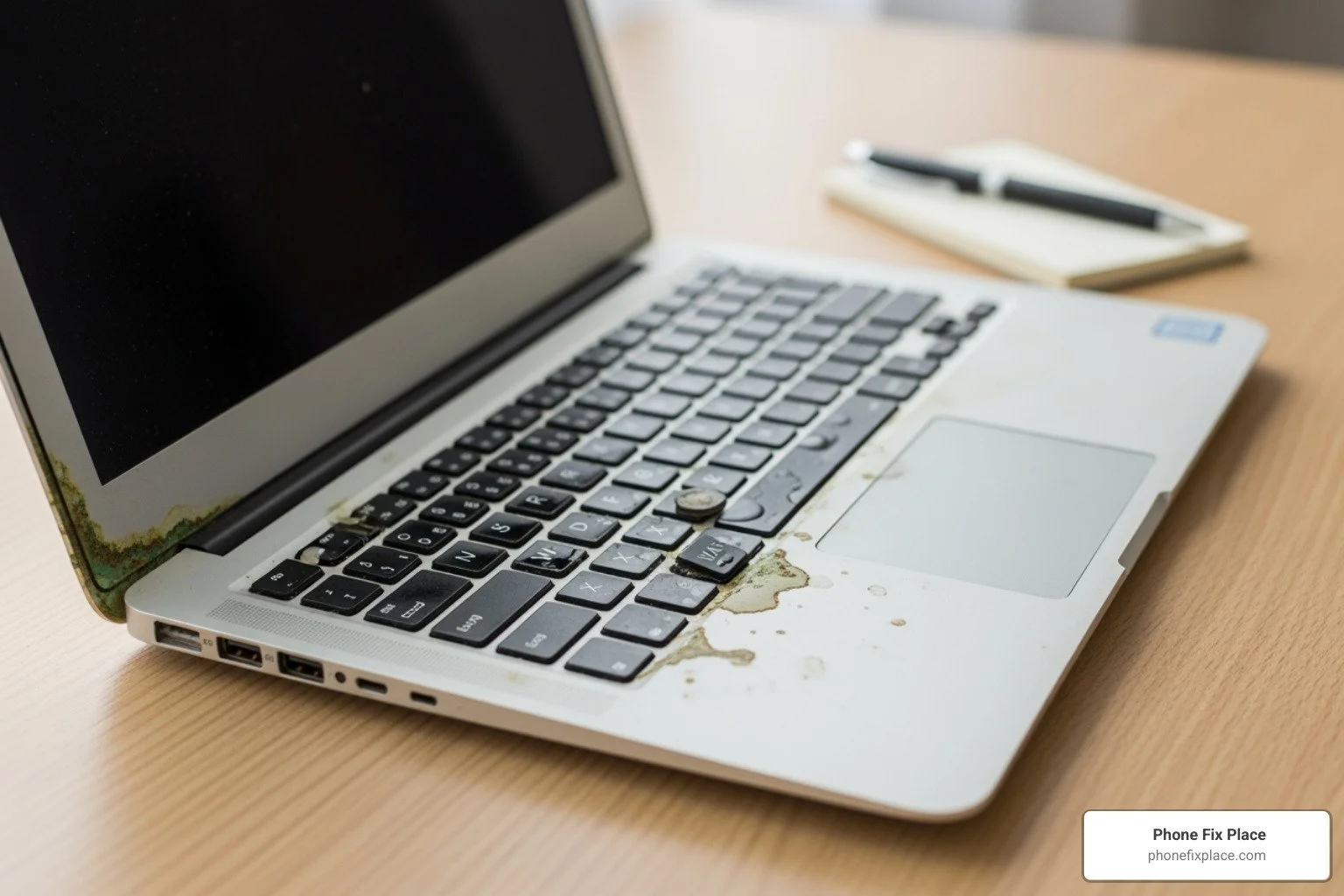
A water damaged laptop requires immediate action. Here's what to do right now:
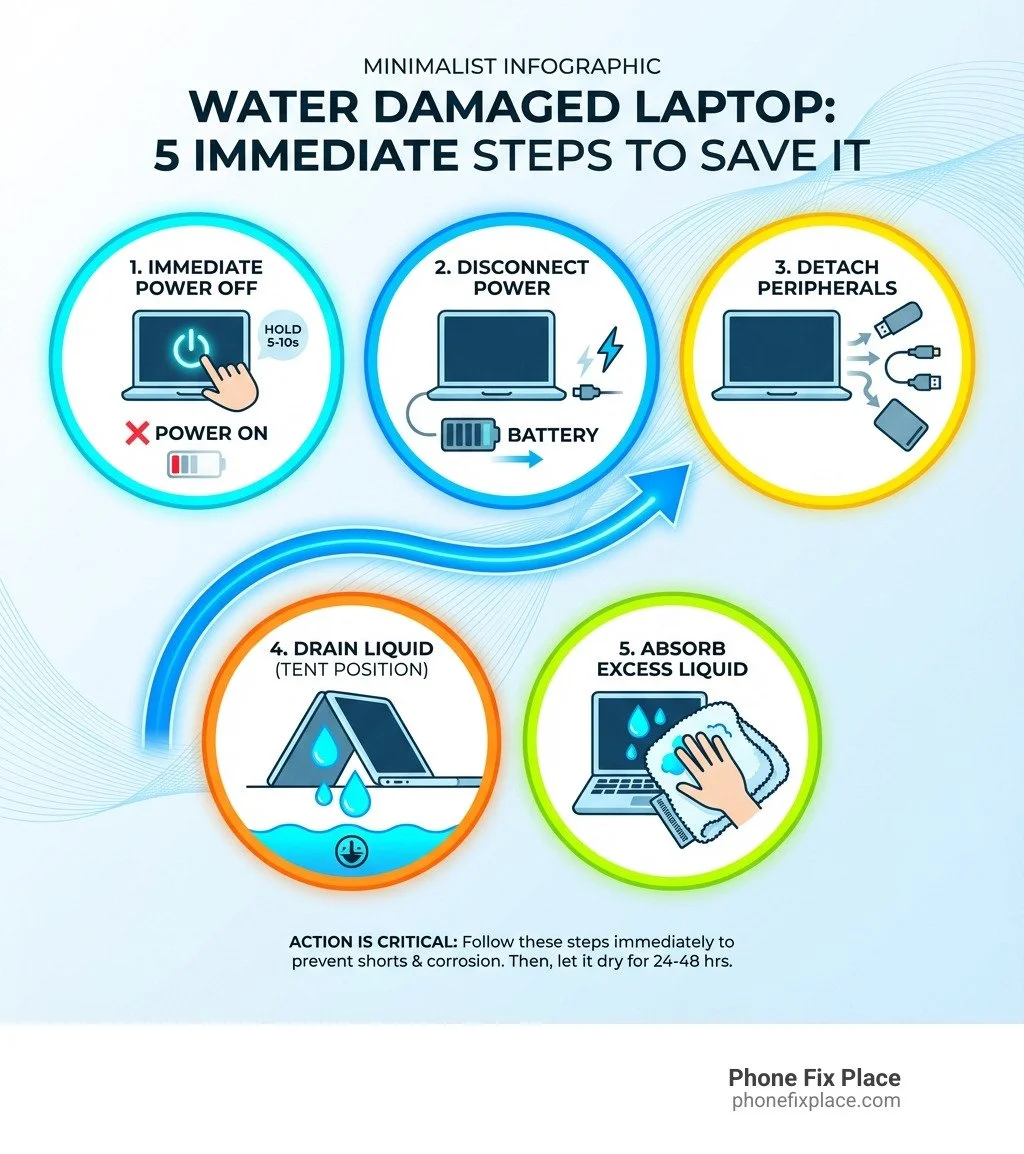
| Turn off the laptop immediately | Hold the power button for 5–10 seconds |
| Unplug all power sources | Disconnect the charger and remove the battery if possible |
| Remove all peripherals | Unplug USB drives, cables, and external devices |
| Turn it upside down | Position it in a tent shape to let liquid drain out |
| Mop up visible liquid | Use an absorbent towel or microfiber cloth |
| Let it dry for 24–48 hours minimum | Place in a warm, dry location with good airflow |
Do NOT turn it back on, use rice, shake it, or apply heat from a hairdryer.
It's every laptop owner's nightmare: You reach for your coffee, and suddenly it's cascading across your keyboard. Or you're caught in an unexpected downpour with your bag wide open. That moment of panic when liquid meets electronics is universal—and terrifying.
The good news? Acting fast can mean the difference between a full recovery and a dead laptop. The primary threats aren't just the initial wetness—they're electrical short circuits and corrosion that can set in within hours. When water conducts electricity through your laptop's delicate circuits, components can fail instantly. Even worse, minerals and contaminants in liquids start corroding metal contacts and circuit boards almost immediately.
This guide will walk you through exactly what to do in those critical first moments, which common "fixes" actually make things worse, and when it's time to bring in professional help.
I'm Cyndi Anastasio, owner of The Phone Fix Place, and after nearly 14 years as an engineer at Intel followed by years specializing in micro-soldering and circuit board diagnostics, I've seen hundreds of water damaged laptop cases—from simple spills caught early to devices that spent hours submerged. The techniques in this guide reflect both engineering principles and real-world repair experience.
The First 5 Minutes: Critical Steps to Save Your Laptop
When your laptop takes an unexpected bath, those first few minutes are absolutely crucial. Think of it like a medical emergency for your device—every second counts! Our goal is to prevent immediate electrical shorts and minimize the potential for long-term corrosion.
How to safely power down and disconnect
The very first thing you need to do is cut the power. Why? Because liquids, especially water, are excellent conductors of electricity. If your laptop is still on, or still connected to a power source, that liquid can create electrical pathways where they shouldn't exist, leading to short circuits that can instantly fry delicate internal components. This is what we call "irreversible harm."
Turn it off, FAST: If your laptop is still running, don't waste time trying to gracefully shut it down through the operating system. Simply press and hold the power button for 5 to 10 seconds until the screen goes black and the device is completely off. This is a critical step to prevent further damage.
Unplug EVERYTHING: Immediately disconnect the power adapter from the wall and from your laptop. But here's a crucial safety tip: if you're standing in water, or your hands and clothes are wet, do NOT reach for the power cord directly. The risk of electrocution is very real. Instead, prioritize your safety and turn off the power to that outlet or even the entire area at your home's circuit breaker. Once the area is safe, you can proceed to unplug.
Remove the battery (if possible): For many older laptops, removing the battery is a simple matter of sliding a latch. If your laptop has a removable battery, take it out immediately. This completely severs the internal power supply, further safeguarding against shorts. If you own a newer model, like a MacBook, Surface, or many ultrabooks, the battery is often internal and not easily removable without special tools and disassembly. In this case, don't force it—just ensure the device is powered off and unplugged.
Disconnect all peripherals: Unplug any USB drives, external hard drives, mice, keyboards, SD cards, or anything else connected to your laptop. These can sometimes draw power or offer additional pathways for liquid to enter or spread.
Drying out your water-damaged laptop
Once the power is cut and all external connections are removed, it's time to get that liquid out!
Mop up the surface: Grab a clean, absorbent towel or a microfiber cloth and gently dab up any visible liquid from the keyboard, screen, trackpad, and exterior casing. Avoid rubbing, as this can push liquid further into crevices.
The "tent" position: This is where gravity becomes your best friend. Open your laptop as wide as it can go, forming an upside-down "V" or "tent" shape. Place it on a dry, absorbent towel with the keyboard facing down. This allows any liquid trapped inside to drain out through the keyboard and vents.
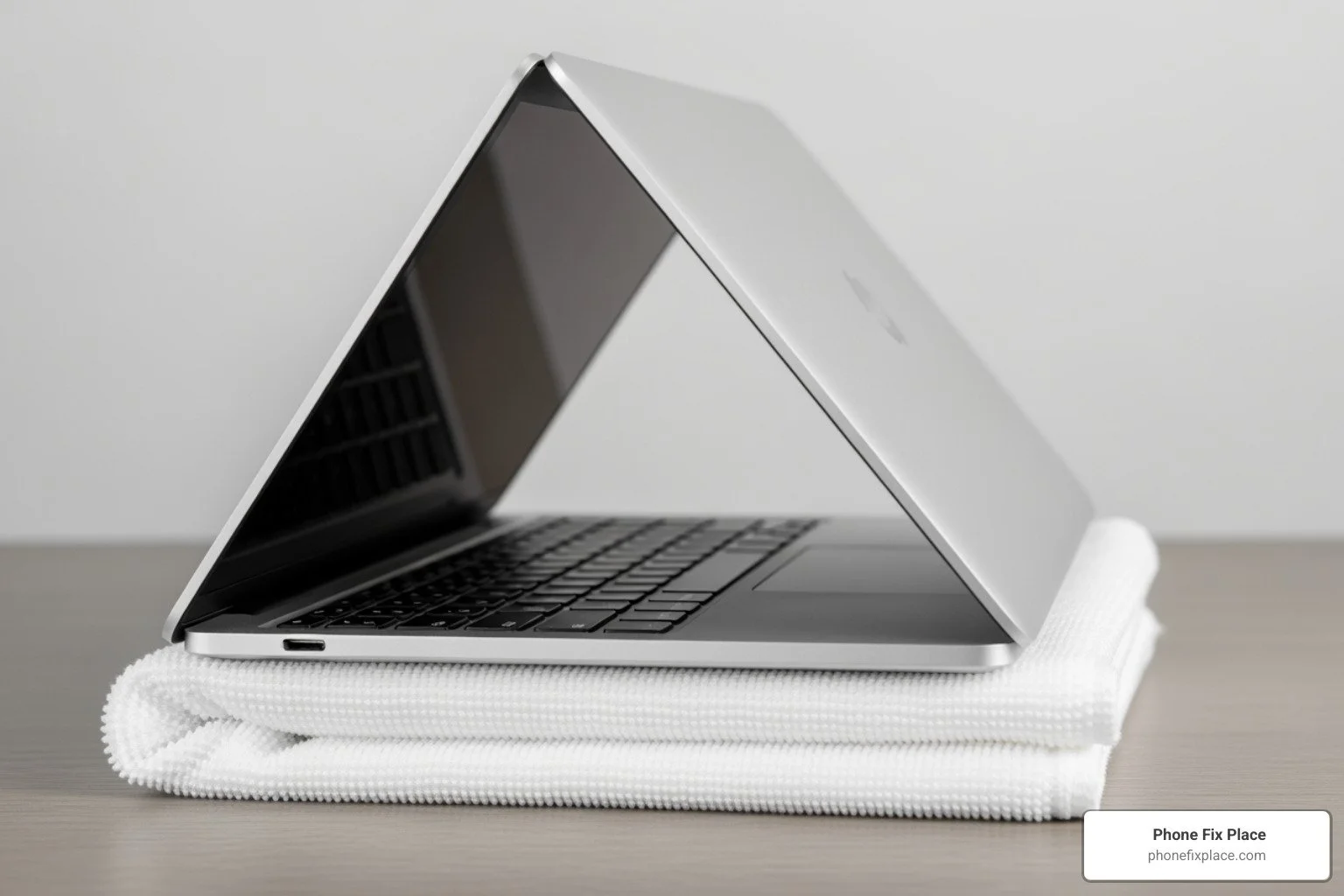
Find a warm, dry spot: Leave your laptop in this tent position in a warm, dry area with good airflow. A room with a fan gently blowing nearby (not directly on the laptop) can help circulate air and speed up evaporation. Avoid direct sunlight or excessively hot environments, as extreme heat can cause more damage than the water itself. We recommend letting it air dry for at least 24 to 48 hours—patience is a virtue here! The longer it dries, the better the chances of complete evaporation.
Common Mistakes: What NOT to Do With a Wet Laptop
In the panic of a liquid spill, it's natural to want to do something—anything!—to save your precious device. However, some common "fixes" can actually make things much, much worse. Knowing what to avoid is just as important as knowing what to do.
Don't panic (as much as possible): While we just said to act fast, a frantic approach can lead to mistakes. Take a deep breath, and methodically follow the steps outlined above.
Don't turn it back on: This is the golden rule! Even if your laptop seems dry on the outside, there could still be moisture lurking internally. Powering it on prematurely is the quickest way to cause a short circuit and permanent damage.
Don't shake it: Shaking your laptop might seem like a good idea to dislodge water, but it actually risks spreading the liquid to previously dry components, potentially worsening the damage.
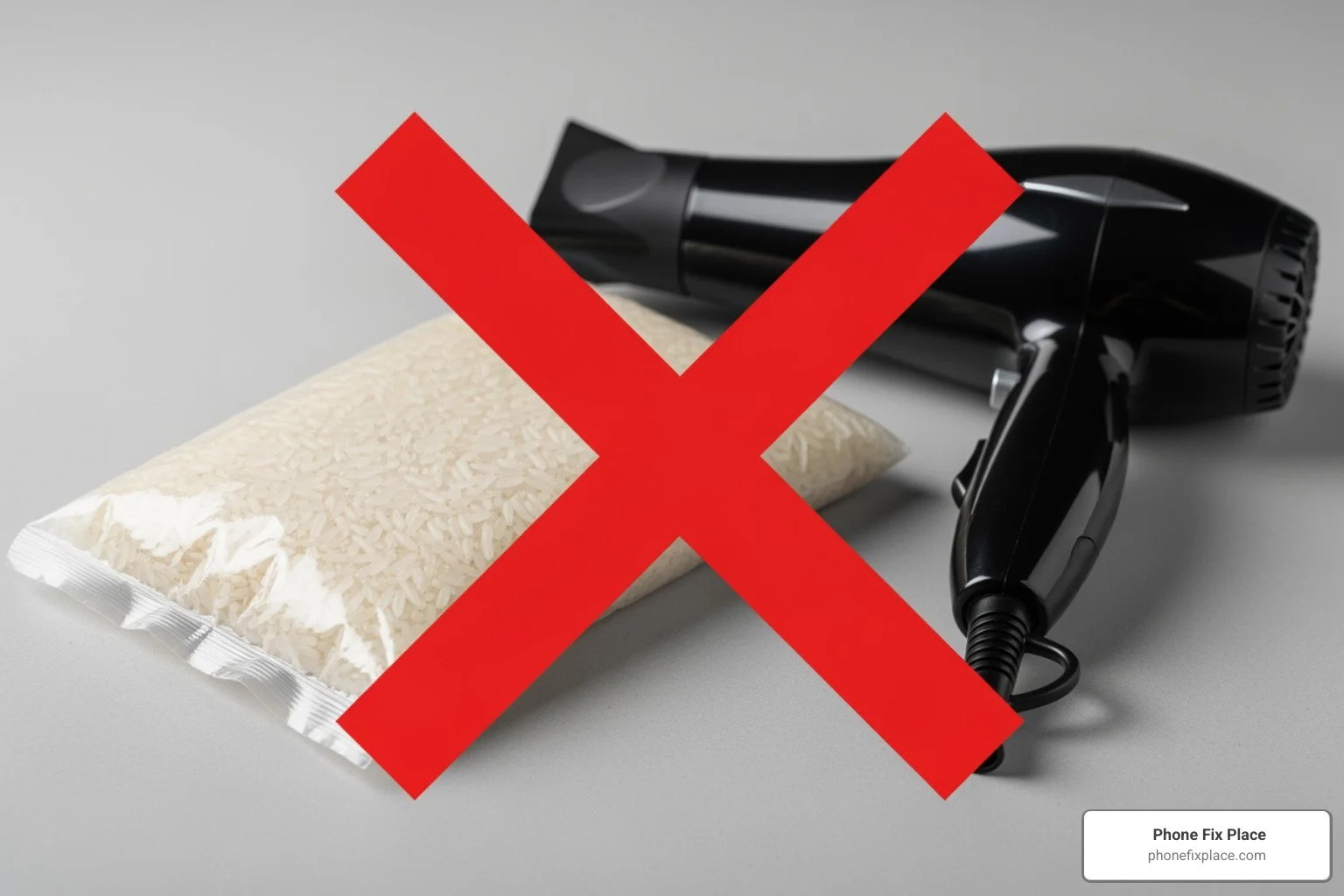
Don't use a hairdryer: We'll dive into this more below, but direct heat is a big no-no.
Don't use rice: Another common myth that does more harm than good.
The Rice Myth Debunked
The idea of putting a wet electronic device in a bowl of rice is a pervasive myth. We hear it all the time, and we're here to tell you: it's ineffective, and potentially harmful.
Rice is not a strong desiccant (drying agent) for electronics. While it might absorb a tiny bit of surface moisture, it does not effectively pull moisture from the intricate internal components of a water damaged laptop. What it can do is introduce dust, starch, and tiny rice particles into your laptop's ports, keyboard, and vents. These particles can cause new problems, like blocking fans, interfering with connections, or accelerating corrosion by providing organic material for residue.
Furthermore, relying on rice gives you a false sense of security. While your laptop sits in a bowl of rice, precious time is ticking away, allowing corrosion to continue its destructive work inside the device. Instead of rice, focus on airflow and professional intervention.
Why Heat is Your Enemy
Another common instinct is to apply heat to speed up the drying process. Resist this urge! Using a hairdryer, placing your laptop in direct sunlight, or putting it on a radiator can cause significant damage:
Component warping: The intense, concentrated heat from a hairdryer can warp plastic components, melt soldering, and damage delicate internal circuits, especially the hard drive.
Pushing water deeper: The force of the air from a hairdryer can actually push liquid further into the laptop's interior, making it harder to dry and potentially spreading the damage.
Overheating: Even if it doesn't immediately melt components, excessive heat can stress the electronics and lead to premature failure.
A warm, dry environment with good airflow is what we're aiming for, not direct, intense heat.
Understanding the Damage to Your Water-Damaged Laptop
When liquid infiltrates your laptop, it initiates a destructive chain of events. The immediate concern is electrical short circuits, as conductive liquids can bridge circuits that are designed to be isolated, leading to instant component failure. However, the long-term damage, often more insidious, comes from corrosion.
Corrosion is essentially an electrochemical process where metal components react with the liquid and oxygen, leading to oxidation and rust. This process is accelerated by impurities and minerals in the liquid. Even if your laptop seems to work after drying, hidden corrosion can continue to eat away at solder joints, traces on the circuit board, and delicate connectors, leading to delayed failures weeks or even months later. Mineral deposits left behind after the liquid evaporates can also become conductive or interfere with component function.
The Role of Liquid Type and pH
Not all liquids are created equal when it comes to laptop damage. Pure water (pH 7.0) is bad enough, but many other common spills are far more corrosive due to their chemical composition and pH levels. The pH scale measures how acidic or alkaline a substance is, and extreme pH levels can accelerate corrosion significantly.
Highly acidic liquids (low pH) or highly alkaline liquids (high pH) can rapidly degrade metal and other materials inside your laptop. Sugary drinks, for example, leave behind sticky residues that can block components, attract dust, and become conductive when re-moistened. They also tend to be acidic, speeding up corrosion. Saltwater is particularly destructive due to its high conductivity and corrosive salts.
Here's a quick look at the pH of some common culprits:
| Liquid Type | Typical pH Range | Impact on Laptop (General) |
|---|---|---|
| Pure Water | 7.0 | Conductive, causes shorts, leaves mineral deposits leading to corrosion. |
| Coffee | 5.0 | Mildly acidic, leaves residue, can cause shorts and corrosion. |
| Tea | 5.5 | Similar to coffee, mildly acidic, leaves residue. |
| Cola | 2.5-3.5 | Highly acidic, leaves sticky, conductive sugar residue, very corrosive. |
| Fruit Juice | 3.5 | Acidic, leaves sticky sugar residue, corrosive. |
| Beer | 4.5 | Mildly acidic, leaves sticky residue, can cause shorts and corrosion. |
| Sea Water (Saltwater) | ~8.2 | Highly conductive due to salt, extremely corrosive, leaves conductive salt deposits. |
| Hand Soap | 9.0-10.0 | Alkaline, leaves residue, can be corrosive and cause shorts. |
| Bleach | 12.5 | Highly alkaline, extremely corrosive, causes rapid degradation of components. |
| Lemon Juice | 2.3 | Highly acidic, very corrosive. |
Understanding pH is crucial because it helps us gauge the severity and speed of potential corrosion. Pure water is certainly dangerous, but a spill of cola or saltwater demands even quicker, more aggressive intervention due to their highly corrosive nature. Learn more about pH and its impact on various substances from the CDC.
Assessing a water damaged laptop battery or drive
After a liquid spill, two components that warrant special attention are the battery and the storage drive (HDD or SSD).
Battery: Lithium-ion batteries, common in most modern laptops, do not tolerate submersion or liquid exposure well. If your device has been submerged or heavily doused, it's highly likely the battery will need replacement. Inspect the battery carefully for any signs of damage: bubbling, bulging, melting, discoloration, or a strange odor. These are all indicators that the battery is compromised and potentially unsafe. A damaged battery can overheat, swell, or even catch fire. For safety, if you suspect battery damage, do not attempt to recharge or use the laptop. When replacing a damaged battery, please dispose of the old one responsibly at a certified battery recycling facility.
Storage Drive: While less susceptible to immediate failure from brief liquid contact than other components, a storage drive can still be affected. If the liquid reaches the internal electronics of an HDD or SSD, it can cause data corruption or complete drive failure. The good news is that often, even if the laptop's motherboard is irrecoverably damaged, the data on the storage drive might still be intact. This is why data recovery is such a critical service we offer. If your laptop won't turn on after a spill, our priority will often be to attempt to recover your valuable data from the storage drive first.
When to Call a Professional for Repair
While immediate DIY steps can significantly improve your laptop's chances of survival, there comes a point when professional intervention is not just recommended, but often essential. We've seen countless cases where a little professional TLC makes all the difference.
You should definitely consider bringing your water damaged laptop to experts like us if:
The laptop won't turn on: After a thorough drying period (24-48 hours), if your laptop remains unresponsive, it's a clear sign that internal damage has occurred beyond simple moisture.
Strange noises or smells: Any unusual whirring, clicking, buzzing, or burning smells when attempting to power on (or even before) indicates serious internal issues.
Screen issues: A flickering screen, distorted display, colored lines, or no display at all points to damage to the screen assembly, display cable, or graphics hardware.
Keyboard not working: If certain keys or the entire keyboard is unresponsive or "sticky," liquid likely reached the keyboard's membrane or underlying circuitry.
Non-removable battery: If your laptop has an internal, non-removable battery (common in MacBooks, ultrabooks, and many newer Windows laptops), disassembling it to properly dry and clean internal components is a complex task best left to professionals. Attempting it yourself risks further damage and can void any potential warranty.
You're uncomfortable with DIY: We understand that opening up a laptop can be intimidating. If you're not confident in your technical skills, or you lack the right tools, bringing it to us is the safest bet to avoid causing additional harm.
How Professionals Fix Liquid Damage
When you bring your water damaged laptop to The Phone Fix Place in Albuquerque, here's what you can expect from our expert repair process:
Free Diagnostic: The very first step is a comprehensive, no-cost diagnostic. Our technicians will carefully inspect your laptop, both externally and internally, to assess the extent of the liquid damage and identify all affected components. This helps us understand exactly what needs to be done and provide you with an accurate estimate.
Full Disassembly: Unlike quick DIY fixes, we fully disassemble your laptop. This allows us to access every nook and cranny, every circuit board, and every connector that might have come into contact with liquid.
Thorough Cleaning: This is where the magic happens. We use specialized tools and cleaning solutions, including high-grade isopropyl alcohol (90%+ strength) and, in some cases, ultrasonic cleaners. Ultrasonic cleaners are particularly effective for removing corrosive residues and mineral deposits from circuit boards, something virtually impossible to achieve with DIY methods.
Component-Level Inspection and Repair: Our experts carefully inspect each component for signs of corrosion, short circuits, or other damage. We can often perform micro-soldering and component-level repairs on motherboards, saving you the cost of a full board replacement.
Data Recovery Services: If the motherboard is beyond repair, or if the storage drive itself is damaged, we offer advanced data recovery services to retrieve your precious files, photos, and documents.
Can a Water-Damaged Laptop Be Fully Repaired?
The good news is that, yes, a water damaged laptop can often be fully repaired. The success rate largely depends on how quickly you act after the spill, the type of liquid involved, and the extent of the damage. With prompt action and professional intervention, many laptops make a complete recovery.
However, sometimes a "partial recovery" might be the most cost-effective solution, especially if major components like the motherboard or screen are severely damaged. In such cases, we might focus on data recovery and advise on replacing the device, or we might repair key components to get it functional again, with transparent communication about any remaining risks.
At The Phone Fix Place, we believe in transparent pricing and service. Our free diagnostic will give you a clear picture of the damage, the repair options, and the associated costs. We stand by our work with a one-year warranty on all repairs, giving you peace of mind. For a professional assessment, you can always get a professional computer repair assessment with us.
Frequently Asked Questions about Laptop Water Damage
We hear a lot of questions about liquid spills, and these are some of the most common concerns our customers in Albuquerque have.
My laptop seems to be working fine after drying. Am I in the clear?
This is a common scenario, and unfortunately, the answer is often "not necessarily." While your laptop might power on and appear to function normally after drying, this doesn't mean it's out of the woods. Hidden corrosion can be a silent killer.
As we discussed, mineral deposits and corrosive residues can remain on circuit boards and connectors, slowly eating away at the metal over time. This can lead to delayed failures weeks or even months down the line. You might experience intermittent issues, such as a sticky keyboard, unresponsive ports, or sudden shutdowns, which are all signs of underlying corrosion.
To truly be "in the clear," we highly recommend bringing your laptop in for a professional check-up, even if it seems fine. Our free diagnostic allows us to open it up, inspect for any hidden damage or corrosion, and clean it thoroughly. It's also a great opportunity to back up your data, just in case any long-term issues do arise. Better safe than sorry when it comes to your valuable data!
How much does it cost to fix a water-damaged laptop?
The cost to fix a water damaged laptop can vary significantly because the extent of the damage is rarely the same in any two cases. It depends on several factors:
Severity of the spill: A few drops on the keyboard is different from a full submersion.
Type of liquid: Sugary, acidic, or salty liquids cause more severe and costly damage.
Affected components: A damaged keyboard is less expensive to replace than a fried motherboard or a corrupted hard drive.
Laptop model: Parts for some high-end or proprietary laptops can be more expensive.
This is precisely why our free diagnostic is so important. When you bring your laptop to The Phone Fix Place, our experts will perform a $0 diagnostic checkup. We'll identify exactly what's damaged, explain your repair options, and provide a clear cost estimate. This way, you can make an informed decision about whether repair is cost-effective compared to replacement. Our goal is to provide the most reliable and affordable solution for you.
How long should I let my laptop dry before trying to turn it on?
Patience is key here, and it's one of the hardest parts of dealing with a water damaged laptop. We recommend a minimum of 24 to 48 hours of drying time. In some cases, especially with larger spills or in humid environments, even longer might be necessary.
Why so long? Because liquid can seep into tiny crevices, under chips, and between layers of circuit boards, where it takes a significant amount of time to fully evaporate. Even a tiny bit of residual moisture can cause a short circuit if power is applied. Placing the laptop in a warm, dry area with good airflow (as described earlier) will help, but resist the urge to power it on before the recommended drying period has passed. It's a small wait that could save you from much larger headaches and expenses.
Your Next Steps to Recovery
Dealing with a water damaged laptop is undoubtedly stressful, but remember, immediate and correct action significantly increases the chances of a successful recovery. We've armed you with the knowledge to act fast, avoid common myths like the rice trick or using a hairdryer, and understand the potential damage.
Whether your laptop just took a small splash or a full-on dive, knowing when to call in the professionals is crucial. If your laptop won't turn on, shows strange symptoms, or if you're simply not comfortable delving into its internal components, don't hesitate to reach out.
At The Phone Fix Place in Albuquerque, we specialize in bringing devices back from the brink. Our experienced technicians offer fast, reliable, and affordable tech repairs for computers, phones, tablets, and gaming consoles. We pride ourselves on our free diagnostics, same-day service for many repairs, and a one-year warranty on all our work. We're here to help you steer this watery crisis and get your laptop back to full health.
Don't let a spill turn into a permanent loss. Take the next step towards recovery and Schedule your free computer repair diagnostic with us today. We'll assess the damage, explain your options, and provide a clear path forward.
