My Laptop Screen is Swimming: A Guide to Water Damage Repair
When Disaster Strikes: Understanding Water Damage on Your Laptop Screen
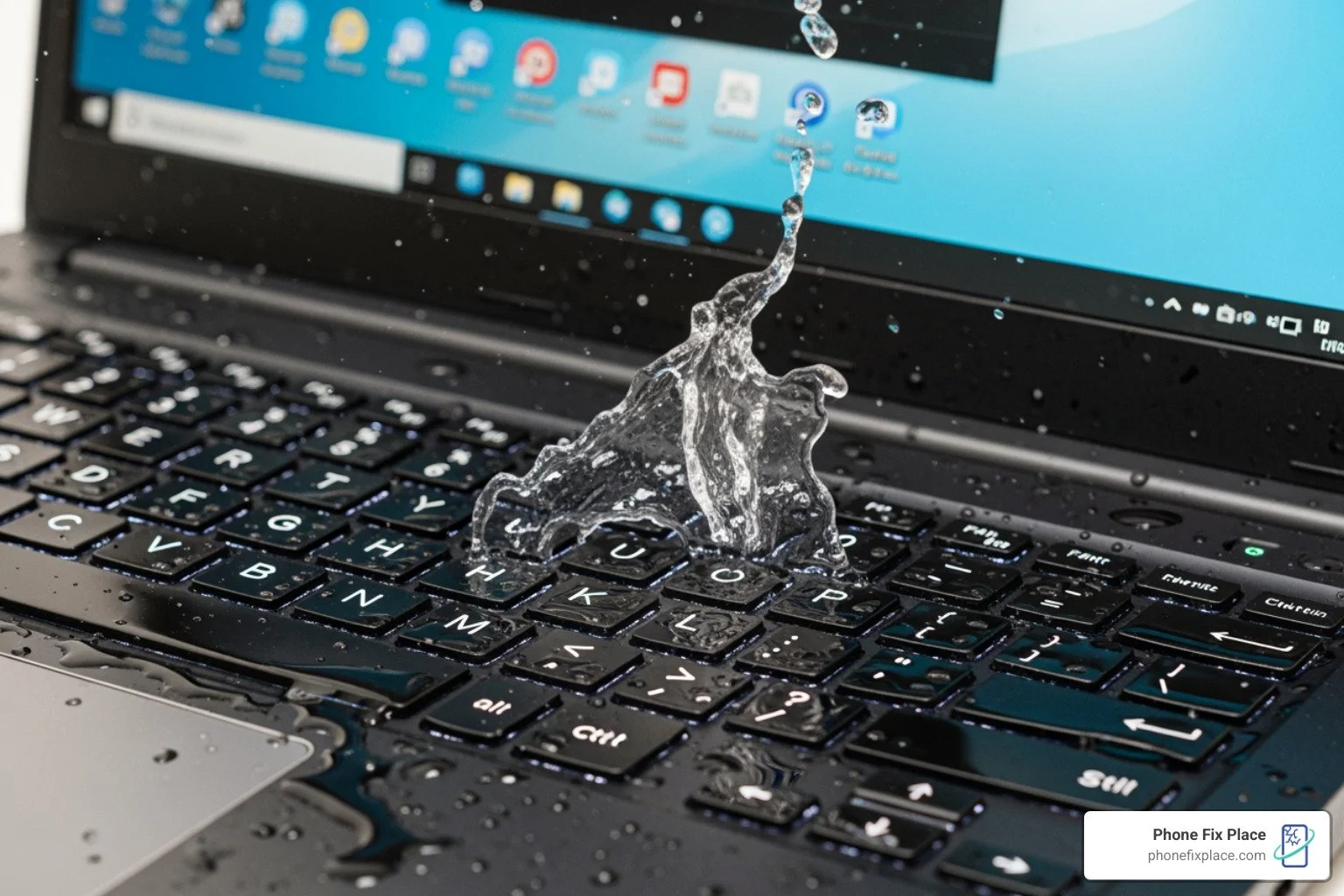
Water damage on a laptop screen can happen in an instant—a knocked-over coffee mug, an unexpected spill, or even condensation from a humid room. When it does, understanding what's happening inside your device and knowing your next steps can mean the difference between a quick fix and a costly replacement.
If you're dealing with water damage on your laptop screen right now, here's what you need to know:
Turn off your laptop immediately and unplug it from power
Don't use rice, hairdryers, or other heat sources to dry it
Water can appear as streaks, blotches, cloudy spots, or flickering on the display
Even minor spills can cause long-term corrosion if not properly addressed
Screen replacement may be necessary if water penetrates between the display layers
Professional cleaning within 24-48 hours gives you the best chance of recovery
Water damage isn't always catastrophic. Sometimes a small spill stays on the surface and can be wiped away. Other times, liquid seeps between the internal layers of your LCD screen, creating those telltale milky blobs or cloudy patches that won't go away. The type of liquid matters too—plain water is bad enough, but coffee, soda, or saltwater introduces sugars, acids, and minerals that accelerate corrosion on delicate internal components.
I'm Cyndi Anastasio, owner of The Phone Fix Place in Albuquerque, and I've spent nearly 14 years as an engineer at Intel before specializing in advanced micro-soldering and circuit board diagnostics. I've seen countless cases of water damage on laptop screens, from minor surface spills to complete submersion, and I know that quick, informed action makes all the difference.
The First 60 Seconds: Immediate Steps to Save Your Laptop
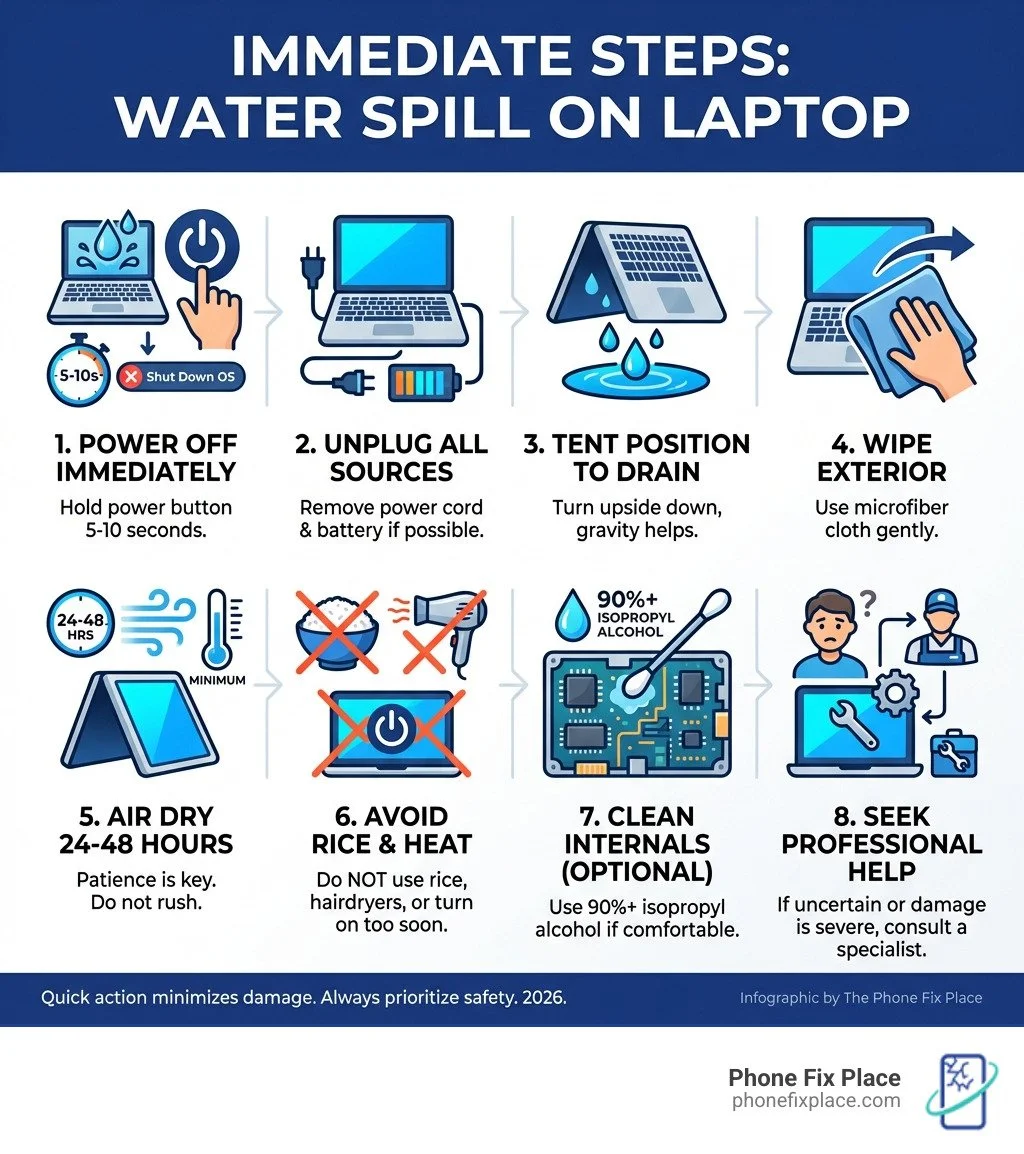
When liquid meets laptop, every second counts. Our primary goal is to prevent the liquid from causing electrical shorts and corrosion on sensitive components. Here's a step-by-step guide to what you need to do immediately:
Power Down, IMMEDIATELY: This is the most crucial step. If your laptop is on, hold down the power button for at least 5 to 10 seconds until it completely shuts off. Don't waste time trying to shut down through the operating system; a hard shutdown is faster and reduces the risk of short circuits.
Unplug Everything: Disconnect the power adapter from the wall and the laptop. If you or your clothes are wet, be extremely careful—consider locating the switch or circuit breaker to cut power to the outlet to avoid electrocution. Next, remove all external peripherals: USB drives, mice, external monitors, and anything else plugged into your laptop.
Remove the Battery (If Possible and Safe): For many older laptop models, the battery is easily removable. If yours is, remove it immediately. This cuts off the last source of power and significantly reduces the risk of internal damage. However, for newer models, the battery might be internal and require tools for removal. If you're not comfortable or don't have the right tools, skip this step to avoid causing further damage.
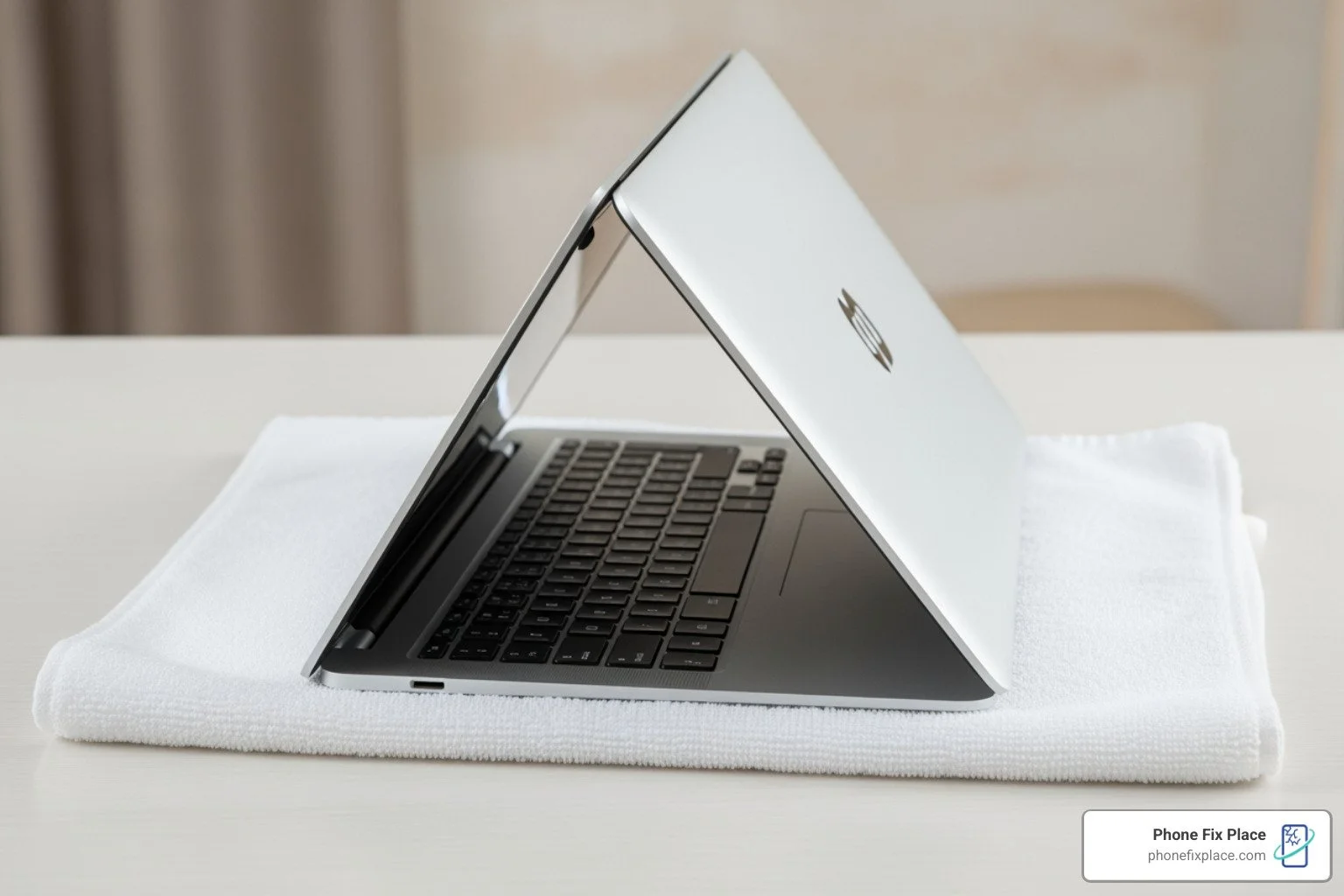
Wipe and Drain: Use a clean, dry microfiber cloth or towel to wipe away all visible liquid from the exterior of your laptop, paying close attention to the keyboard, trackpad, ports, and vents. Then, open your laptop as wide as it can go (or into a "tent" position if possible) and turn it upside down on a dry towel. This helps gravity drain any liquid that has seeped inside.
Let it Air Dry: Leave your laptop in this inverted, open position in a dry, well-ventilated area for at least 24 to 48 hours. The longer, the better, especially in humid environments. Air circulation is key. If you have a household fan, you can position it to blow room-temperature air over the laptop to aid drying.
What NOT to Do After a Spill
While the "do's" are important, the "don'ts" are equally critical. Avoiding these common mistakes can prevent a bad situation from becoming much worse:
Don't Use Heat Sources: Never use a hairdryer, oven, microwave, or direct sunlight to dry your laptop. Excessive heat can melt internal components, damage the screen, and even warp the plastic casing. This is a surefire way to escalate the damage.
Don't Shake Vigorously: While a gentle drain is good, shaking your laptop aggressively can spread the liquid further inside, potentially pushing it into previously unaffected areas.
Don't Turn It On Too Soon: Patience is a virtue here. Turning on a laptop that still has moisture inside is an invitation for short circuits, which can permanently fry your motherboard and other vital components. We recommend waiting the full 24-48 hours, or even longer if you suspect significant intrusion.
Don't Use Rice: We know, we know. It's a popular myth. But putting your laptop in a bag of rice is largely ineffective and can actually cause more harm than good. Rice dust and starch can get into ports, vents, and under keys, making cleaning more difficult and potentially causing new problems. It doesn't effectively absorb moisture from inside sealed components, nor does it clean away corrosive residues.
Diagnosing the Extent of Water Damage on a Laptop Screen
Once the immediate danger is past and your laptop has had ample time to dry, you might start to wonder about the damage. When liquid gets into a laptop, especially near the display, it can manifest in various ways. Understanding these symptoms is key to assessing the severity of the water damage on the laptop screen.
Here are the common symptoms we often see:
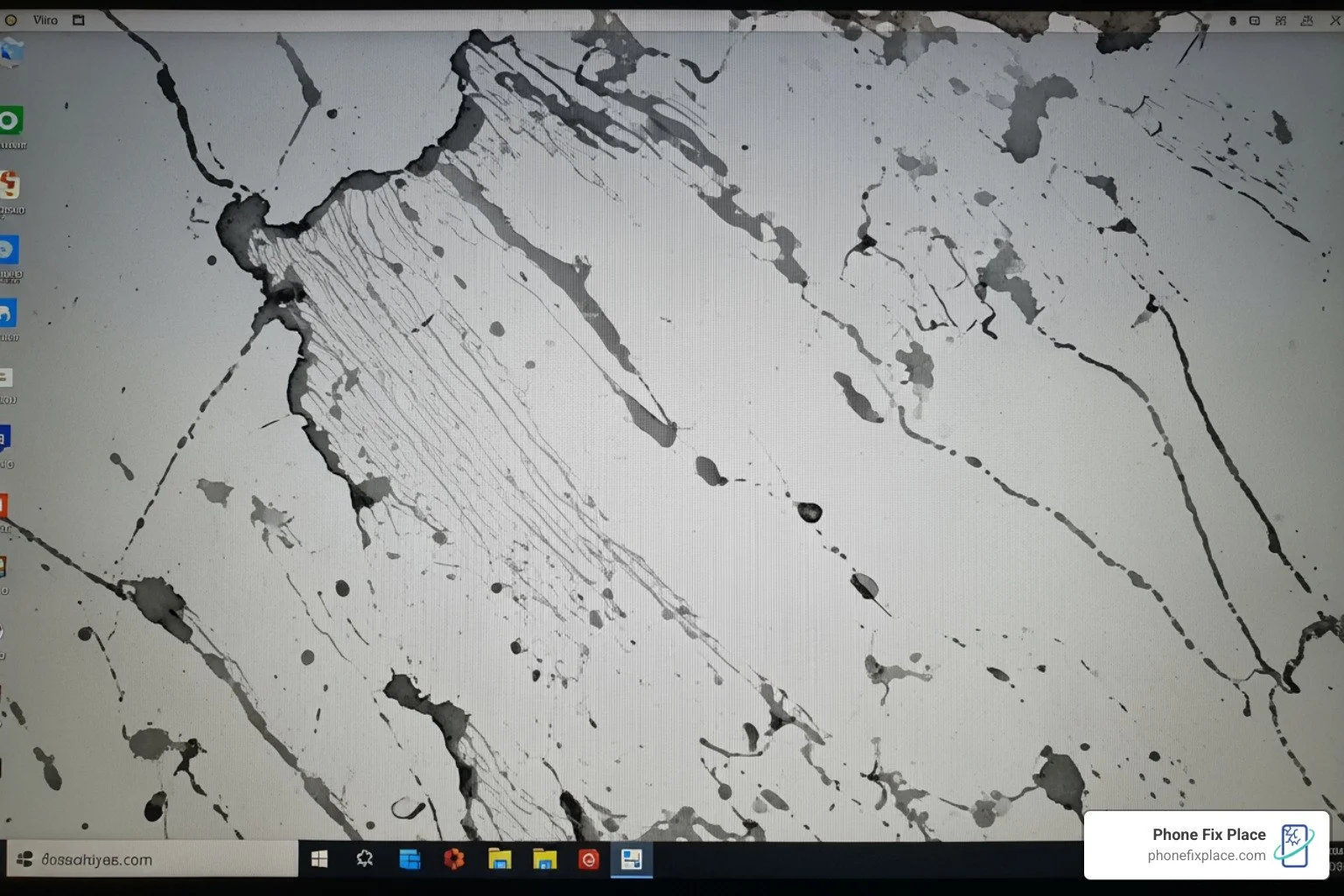
Blotches, Streaks, or Spots: These are the most common visual indicators. You might see dark or discolored patches, lines, or splotches on the screen. These are often caused by liquid getting trapped between the screen layers.
Flickering or Dim Display: The screen might flicker intermittently or appear significantly dimmer than usual. This can indicate damage to the display's backlight, its power supply, or the connection cables.
Dead Pixels or Lines: Persistent dead pixels (tiny black dots) or colored lines (vertical or horizontal) may appear, indicating damage to the LCD panel itself.
Cloudy or Milky Patches: If the screen looks foggy or has clear and milky-looking patches, especially on a white background, it's a strong sign of internal moisture.
Unresponsive Touchscreen (if applicable): If your laptop has a touchscreen, water damage can cause it to become unresponsive, erratic, or register phantom touches.
No Display at All (Black Screen): In severe cases, the screen might remain completely black, even if the laptop powers on (you might hear fan noise or see indicator lights). This could be due to damage to the display panel, the display cable, or even the graphics chip on the motherboard.
The laptop's internal components play a critical role in how water damage affects the screen. The display cable, which carries video signals and power from the motherboard to the screen, is particularly vulnerable. If liquid reaches the motherboard, it can damage the graphics processing unit (GPU) or other circuits responsible for driving the display, leading to screen malfunctions even if the screen itself isn't directly wet. Corrosion can also occur on these internal connections, leading to intermittent problems or complete failure over time.
Surface Spill vs. Water Trapped Inside the Screen Layers
It's important to distinguish between a surface spill and water that has penetrated the internal layers of your laptop screen.
Surface Moisture: This is the best-case scenario. If the liquid only touched the outer surface of your screen (the protective glass or plastic layer) and didn't seep underneath, a simple wipe with a microfiber cloth should resolve the issue. You might see temporary smudges, but once cleaned, the screen should be back to normal.
Water Trapped Inside the Screen Layers: This is where things get complicated. LCD screens are made up of multiple layers, including polarizing sheets, a liquid crystal layer, and a backlight assembly, all bonded together. If water seeps between these layers, it can cause the telltale cloudy, milky, or blotchy appearance. This moisture is incredibly difficult to remove without disassembling the screen itself, which is a delicate and often irreversible process for the average user. Moisture trapped between polarizing sheets, for instance, can disrupt the light direction and create those persistent visual artifacts. Removing the back panel of the display assembly can significantly speed up drying time for internal moisture, but it requires careful disassembly.
How Different Liquids Affect Your Screen
Not all liquids are created equal when it comes to damaging electronics. The type of liquid spilled on your laptop screen can drastically affect the speed and severity of the damage.
Pure Water (pH 7.0): While still dangerous due to its conductive properties, pure water causes damage primarily through short circuits and subsequent corrosion. If dried quickly and thoroughly, the chances of recovery are higher than with other liquids, assuming no significant shorts occurred.
Tap Water/Saltwater (pH ~7.0-8.2): Tap water contains minerals and impurities that can leave conductive residues, accelerating corrosion. Saltwater, like seawater (about 8.2 pH), is highly corrosive and conductive due to its salt content, making it one of the most damaging liquids.
Sugary Drinks (Cola pH 2.5-3.5, Fruit Juice pH 3.5): These are particularly insidious. The sugar leaves behind sticky, corrosive residues that are difficult to clean. The acidity also rapidly corrodes components, and the stickiness can impede moving parts like keys or fans.
Coffee (pH 5.0) & Tea (pH 5.5): These are acidic and can leave residues. The acidity contributes to corrosion, and the organic compounds can stain components.
Alcoholic Beverages (Beer pH 4.5): Similar to coffee, they are acidic and can leave residues, though the alcohol content might evaporate faster than water, potentially reducing some immediate impact (but not eliminating damage from other components).
Soapy Water/Cleaning Solutions (Hand soap pH 9.0-10.0, Bleach pH 12.5): Highly alkaline or acidic cleaning solutions are extremely corrosive and can quickly destroy delicate electronic circuits. Bleach, for example, is highly destructive.
The pH value of the spilled liquid significantly impacts the speed and severity of corrosion. More acidic (lower pH) or more alkaline (higher pH) liquids will cause corrosion to occur much faster than neutral liquids. Furthermore, liquids with high sugar concentrations introduce additional challenges due to the solid residue that remains even after the liquid evaporates, continuing to cause problems.
The corrosive potential of different beverages is a real concern, and it's why a spill of cola is often far worse than a spill of pure water.
Long-Term Effects of Water Damage on Laptop Screen
Even if your laptop appears to be working after a water spill, don't breathe a sigh of relief too quickly. Water damage has a notorious habit of causing delayed, insidious problems.
Hidden Corrosion: Liquid, especially if it contained minerals, sugars, or acids, can leave behind corrosive residues on internal components. This corrosion might not immediately cause a problem, but it can slowly eat away at solder joints and circuit traces, leading to intermittent issues or complete component failure weeks or even months down the line. We've seen perfectly functional laptops suddenly develop flickering screens or completely die due to corrosion that was never fully cleaned.
Flickering Issues and Intermittent Display Problems: The delicate connections within the screen assembly or the display cable can suffer gradual corrosion, leading to the screen flickering, showing distorted colors, or cutting out periodically.
Reduced Lifespan: Even if the laptop seemingly recovers, the overall lifespan of the components can be significantly reduced. The stress from the initial short circuits or the ongoing corrosion can weaken parts, making them more prone to failure.
Data Loss Risk: While not directly a screen issue, if liquid reached the motherboard or storage drive, there's a risk of data corruption or loss. Even if your screen appears fine, other internal components might be compromised, jeopardizing your valuable files.
To DIY or Not to DIY? Navigating Your Repair Options
When faced with water damage on a laptop screen, the question often arises: "Can I fix this myself, or do I need professional help?" This decision depends on your comfort level with electronics, your technical skills, and the severity of the damage.
DIY Fixes for Minor Water Damage on Laptop Screen
For very minor spills that seem to be surface-level or very light internal condensation, you might be able to attempt some DIY steps, but proceed with extreme caution.
Disassembly (with proper guidance): If you are comfortable and have the right tools, carefully opening up your laptop (and potentially the display assembly if moisture is trapped inside) can help with drying and cleaning. There are many online guides specific to laptop models, but many screens are bonded units, making internal access difficult and risky.
Cleaning with Isopropyl Alcohol: If you've opened your laptop and see sticky residue or signs of corrosion on components (NOT the screen itself, which is very delicate), you can use 90%+ isopropyl alcohol (rubbing alcohol) and a soft-bristle toothbrush. Isopropyl alcohol evaporates quickly and leaves no residue, making it ideal for cleaning electronics. Gently scrub away any visible corrosion or residue.
Thorough Drying: After any cleaning, ensure the components are absolutely, completely dry before reassembling or attempting to power on. Patience is truly a virtue here.
However, attempting a DIY repair carries significant risks. You could cause further electrical damage, accidentally damage delicate components during disassembly, or even void any remaining warranty. More importantly, there's an electrical shock hazard if you're not careful. If you're unsure, it's always safer to seek professional help. For comprehensive information about laptop issues, consider checking out our general Laptop Repair page.
When to Call a Professional for Help
While we love empowering our customers, there are clear signs that professional intervention is your best bet for water damage on a laptop screen.
Laptop Won't Turn On or Has a Black Screen: If your laptop remains unresponsive or the screen stays black after drying, it's likely that a component has been short-circuited or severely corroded.
Visible Corrosion or Sticky Residue: If you see any green or white powdery residue (corrosion) on internal components, or if sugary liquids have left a sticky mess, professional cleaning is required. Repair shops often have specialized tools like ultrasonic cleaners that can thoroughly clean circuit boards.
Persistent Screen Issues: If your screen continues to show blotches, streaks, flickering, or other display anomalies after thorough drying, the internal screen layers are likely compromised, or the display cable is damaged. Screen replacement is often the solution here.
Battery Damage: If the battery looks swollen, discolored, or shows any signs of bubbling, it's damaged and needs to be replaced immediately. Damaged lithium-ion batteries can be a fire hazard. Dispose of it only at a battery recycling facility.
You're Not Confident: If you're uncomfortable opening your laptop, lack the right tools, or simply don't feel confident in your ability to diagnose and clean the damage, a professional is your safest option.
At Phone Fix Place in Albuquerque, we offer free diagnostics for water-damaged laptops. We can assess the extent of the damage, identify affected components, and provide you with a clear repair estimate. Our experts handle everything from intricate circuit board cleaning to screen replacements, ensuring your laptop gets the best chance at recovery. Many of our repairs are even completed with same-day service, and we stand by our work with a one-year warranty on all repairs. If you're in the area and need expert help, check out our Computer Repair in Los Ranchos de Albuquerque services.
Prevention is the Best Medicine: Protecting Your Laptop
An ounce of prevention is worth a pound of cure, especially when it comes to water damage on a laptop screen. Most laptops are not water-resistant, so proactive measures are your best defense.
Keep Liquids Away: The simplest and most effective strategy. Avoid placing drinks directly next to your laptop. If you must have a beverage, use a spill-proof mug or place it on a separate surface.
Use a Keyboard Cover: A silicone keyboard cover can create a barrier against spills, preventing liquid from seeping into the keyboard and reaching the internal components or the display cable underneath.
Invest in a Waterproof Case or Sleeve: When traveling or commuting, a waterproof laptop sleeve or case provides an extra layer of protection against unexpected rain or accidental spills in your bag.
Maintain a Clean and Organized Workspace: A cluttered desk increases the chances of knocking over a drink. Keeping your workspace tidy reduces the risk of accidents.
Be Mindful of Humidity and Condensation: If you move your laptop from a cold environment to a warm, humid one, condensation can form inside. Allow your laptop to acclimate before powering it on, and avoid using it in excessively humid conditions for prolonged periods.
Frequently Asked Questions about Laptop Screen Water Damage
We get a lot of questions about water damage, and we're here to clear up some common concerns.
Can a water-damaged laptop screen be fully restored?
This is the million-dollar question, and the answer is: it depends. If the water damage was minor and only affected the surface, then yes, it can be fully restored by cleaning. However, if liquid has seeped between the internal layers of the LCD panel, causing blotches, lines, or cloudiness, then complete restoration to its original, flawless condition is usually not possible without replacing the entire screen assembly. While some minor internal moisture might evaporate over many days, the residues left behind by non-pure water (minerals, sugars, acids) can cause permanent visual imperfections. In most cases where internal screen damage is visible, a screen replacement is the most effective solution for a full restoration of display quality.
How much does it cost to fix water damage on a laptop screen?
The cost to fix water damage on a laptop screen can vary significantly. It depends on several factors:
Extent of Damage: Is it just the screen, or has the liquid also affected the motherboard, keyboard, or battery?
Laptop Model: Newer, high-end laptops or those with integrated touchscreens/specialized displays often have more expensive replacement parts.
Parts Needed: If only a cable needs replacing, it's cheaper than a full screen assembly.
Labor Costs: Professional repair involves the technician's time and expertise.
At Phone Fix Place in Albuquerque, we offer free diagnostics, so you'll get a precise quote after our experts assess the damage. This allows you to make an informed decision about whether repair or replacement is the most cost-effective option for you.
How long should I let my laptop dry?
We recommend a minimum of 24 to 48 hours for air drying after a liquid spill. In highly humid environments, or if you suspect a significant amount of liquid entered the device, extending this drying time to 72 hours or more can be beneficial. Using a fan to circulate room-temperature air around the laptop can help speed up the evaporation process. The key is thoroughness; powering on a laptop too soon, even if it feels dry to the touch, can lead to irreversible short circuits if internal moisture remains.
Conclusion
Dealing with water damage on a laptop screen can be a nightmare, but armed with the right knowledge and quick action, you can significantly increase your chances of saving your device. Remember to prioritize immediate power-off, disconnect everything, and allow ample drying time while avoiding common myths like using rice or heat.
Understanding the symptoms, the difference between surface and internal damage, and how different liquids cause varying levels of harm will empower you to make informed decisions. While some minor issues might be tackled DIY, knowing when to call in the professionals is crucial to prevent further damage and ensure a lasting repair.
At Phone Fix Place, we understand the stress of a liquid-damaged laptop. Our team of experts in Albuquerque is ready to provide fast, reliable, and affordable tech repairs. With free diagnostics, same-day service on many repairs, and a one-year warranty, we're dedicated to getting your laptop back in working order. Don't let a spill be the end of your device—let us help you steer the repair process. Get a free diagnostic for your computer repair today!